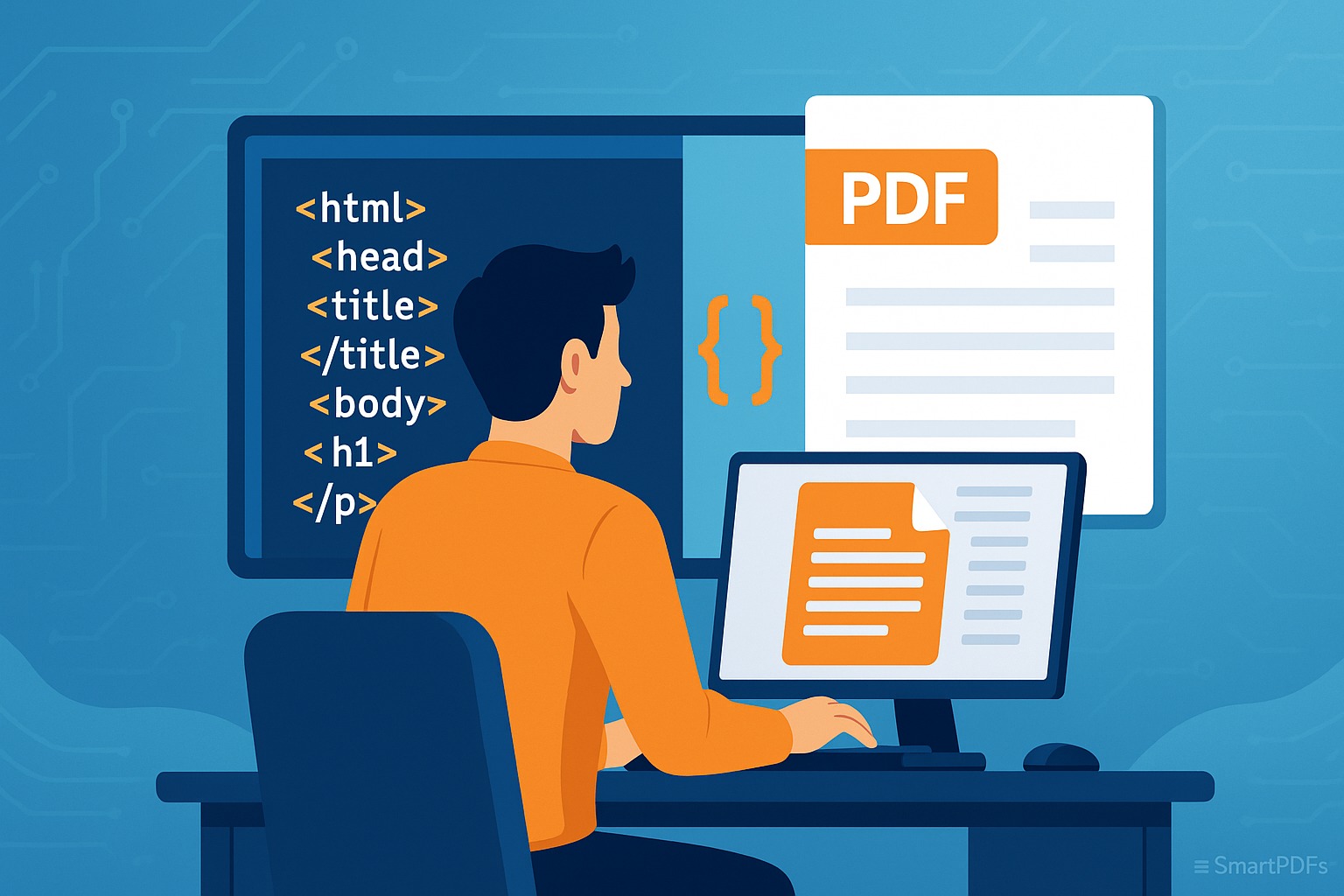
How to Convert HTML to PDF (For Developers & Bloggers)
In the digital age, the ability to convert HTML to PDF is an indispensable skill for developers and bloggers alike. Whether you need to archive web pages, create easily shareable documents, or ensure consistent formatting across different platforms, mastering this conversion process is crucial. This comprehensive guide will walk you through everything you need to know about converting HTML to PDF, focusing on practical techniques and free tools, especially SmartPDFs' HTML to PDF converter.
Why Convert HTML to PDF?
Before diving into the how-to, let's understand why you might need to convert HTML to PDF in the first place:
- Archiving Web Content: Preserve the content of web pages for future reference, even if the original site changes or disappears.
- Creating Shareable Documents: PDFs are universally compatible and maintain formatting, making them ideal for sharing content with a wide audience.
- Ensuring Consistent Formatting: PDFs ensure that your content looks the same regardless of the device or operating system it's viewed on.
- Offline Access: Allows users to access web content without an internet connection.
- Professional Presentations: Convert code snippets or web layouts into presentable PDF documents for meetings or reports.
Methods for Converting HTML to PDF
There are several methods to convert HTML to PDF, each with its own advantages and disadvantages. We’ll explore a few popular options:
1. Online Converters (SmartPDFs)
Online converters like SmartPDFs offer a quick and easy way to convert HTML to PDF without installing any software. These tools are typically free and user-friendly.
How to use SmartPDFs HTML to PDF converter:
- Navigate to the SmartPDFs HTML to PDF converter page.
- Paste your HTML code into the designated text area, or enter the URL of the web page you want to convert.
- Click the “Convert” button.
- Download the resulting PDF file.
Pros:
- No software installation required.
- User-friendly interface.
- Fast and convenient.
- Often free to use.
Cons:
- May have limitations on file size or number of conversions.
- Security concerns if handling sensitive data (always check the privacy policy).
- Limited customization options compared to other methods.
2. Browser Built-in Print to PDF
Most modern web browsers have a built-in “Print to PDF” feature that allows you to save any webpage as a PDF. This is a convenient option for simple conversions.
How to use Print to PDF:
- Open the web page you want to convert in your browser.
- Press Ctrl+P (Windows) or Cmd+P (Mac) to open the print dialog.
- In the printer selection dropdown, choose “Save as PDF” or a similar option.
- Adjust any settings as needed (e.g., page layout, margins).
- Click “Save” and choose a location to save the PDF file.
Pros:
- No additional software required.
- Easy to use.
- Available on most devices.
Cons:
- Limited customization options.
- May not accurately preserve complex HTML layouts or interactive elements.
- Can sometimes produce larger file sizes.
3. Programming Libraries (For Developers)
For developers who need more control over the conversion process, programming libraries offer a powerful solution. These libraries allow you to programmatically convert HTML to PDF using languages like Python, JavaScript, and PHP.
Example: Python with WeasyPrint
WeasyPrint is a Python library that renders HTML into PDF. It supports CSS3 and is relatively easy to use.
from weasyprint import HTML

html = HTML(string='<h1>Hello, World!</h1>')
html.write_pdf('hello.pdf')
Pros:
- Highly customizable.
- Programmatic control over the conversion process.
- Suitable for batch processing and automation.
Cons:
- Requires programming knowledge.
- More complex setup and configuration.
- May require additional dependencies.
4. Command-Line Tools (For Advanced Users)
Command-line tools like wkhtmltopdf provide a robust way to convert HTML to PDF from the command line. These tools are often used in scripting and automation workflows.
Example: wkhtmltopdf
To convert an HTML file to PDF using wkhtmltopdf, you can use the following command:
wkhtmltopdf input.html output.pdf
Pros:
- Powerful and flexible.
- Suitable for scripting and automation.
- Supports a wide range of options and settings.
Cons:
- Requires command-line knowledge.
- Can be more complex to configure than other methods.
- May require installing additional dependencies.
Tips for Clean and Accurate HTML to PDF Conversions
To ensure that your HTML to PDF conversions are clean and accurate, consider the following tips:
- Use Valid HTML: Make sure your HTML code is valid and well-formed. Use an HTML validator to identify and fix any errors.
- Use CSS for Styling: Use CSS to control the appearance of your HTML content. This will help ensure that your PDF looks the way you intended.
- Optimize Images: Optimize images for web use to reduce file size and improve loading times.
- Test Your Conversion: Always test your conversion to make sure everything looks correct before sharing the PDF.
- Choose the Right Tool: Select the right tool for your needs. For simple conversions, an online converter or browser built-in feature may suffice. For more complex conversions, consider using a programming library or command-line tool.
- Pay Attention to Page Breaks: Control page breaks using CSS properties like `page-break-before`, `page-break-after`, and `page-break-inside` to prevent content from being split awkwardly across pages.
- Handle Interactive Elements: Be aware that interactive elements like JavaScript-based animations or forms may not be fully supported in PDF format. Consider alternative solutions if you need to preserve interactivity.
Troubleshooting Common Issues
While converting HTML to PDF is generally straightforward, you may encounter some common issues. Here are a few troubleshooting tips:
- Missing Images: Make sure that the image paths in your HTML code are correct and that the images are accessible.
- Incorrect Formatting: Check your CSS code for any errors or inconsistencies. Try using inline styles or embedded styles to ensure consistent formatting.
- Large File Size: Optimize images and remove unnecessary content to reduce the file size of your PDF.
- Encoding Issues: Ensure that your HTML file is saved with the correct character encoding (e.g., UTF-8) to prevent text from displaying incorrectly.
Advanced Techniques
For those seeking more advanced control over HTML to PDF conversions, here are some techniques to explore:
- Using CSS Media Queries: Use CSS media queries to apply different styles for print media, allowing you to optimize your content specifically for PDF conversion.
- Adding Headers and Footers: Use CSS to add headers and footers to your PDF documents, including page numbers, titles, and other relevant information.
- Creating Table of Contents: Generate a table of contents automatically using JavaScript or server-side scripting.
- Watermarking: Add watermarks to your PDF documents to protect your intellectual property.
SmartPDFs: Your Go-To PDF Solution
SmartPDFs offers a suite of free PDF tools designed to simplify your PDF workflows. In addition to the HTML to PDF converter, you can also find tools for merging, splitting, compressing, and editing PDFs. Whether you're a developer, blogger, or simply someone who works with PDFs regularly, SmartPDFs has you covered.
Conclusion
Converting HTML to PDF is a valuable skill for developers and bloggers. By understanding the different methods available and following the tips outlined in this guide, you can ensure clean, accurate, and professional-looking PDF documents. Whether you opt for a simple online converter like SmartPDFs, a browser built-in feature, or a more advanced programming library, the ability to convert HTML to PDF will undoubtedly enhance your digital workflow. Explore the range of tools available at SmartPDFs to streamline your PDF tasks and boost your productivity. Happy converting!



Comments (0)
Leave a Comment