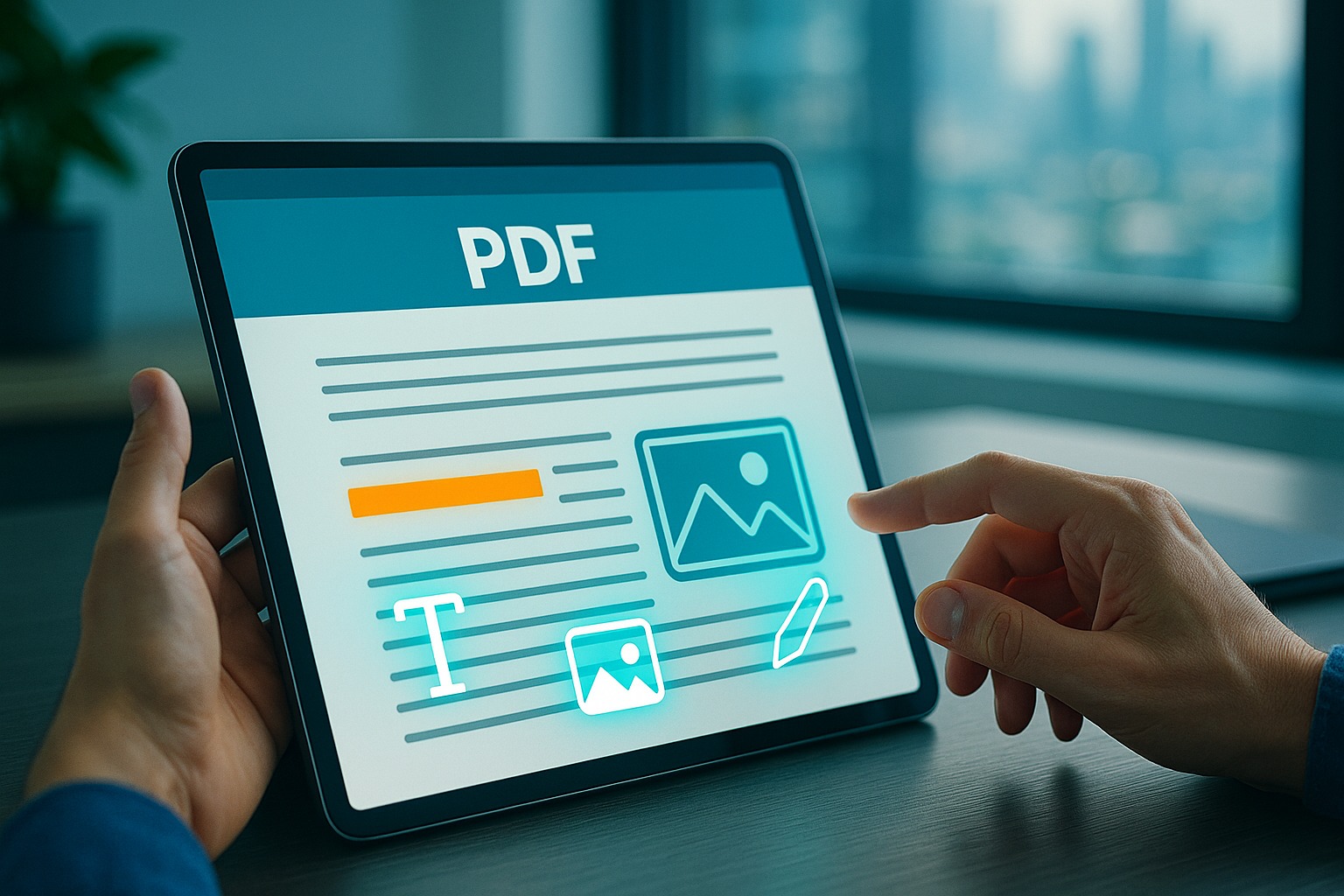
In today's fast-paced digital world, PDF (Portable Document Format) files are everywhere. From contracts and invoices to resumes and eBooks, they are the go-to format for sharing documents that need to maintain their integrity across different devices and operating systems. However, their primary strength – fixed formatting – often becomes their biggest hurdle when you need to make a quick change. Traditionally, editing a PDF required installing hefty, often expensive, software on your computer. This meant dealing with downloads, installations, and sometimes even complex interfaces.
But what if you're on a borrowed computer, using a public workstation, or simply don't want to clutter your device with yet another application? What if you just need to fix a typo, add a signature, or swap an image without the hassle? The good news is that those days are long gone! Thanks to innovative online tools, you can now seamlessly edit PDF files online without any software installation whatsoever. This guide will walk you through everything you need to know about web-based PDF editing, focusing on how you can leverage powerful platforms like SmartPDFs to effortlessly modify your documents directly from your browser.
Why Choose Online PDF Editing Over Desktop Software?
The shift towards cloud-based solutions has transformed how we interact with digital documents. Editing PDFs online offers a plethora of advantages that make it a compelling choice for individuals and businesses alike:
- No Software Installation: This is arguably the biggest benefit. Forget about downloading large files, running installers, and worrying about compatibility issues. Online tools work directly in your web browser.
- Accessibility from Anywhere: Whether you're at home, in the office, or traveling, as long as you have an internet connection and a web browser, you can access your PDF editor. This freedom is invaluable for remote workforces and on-the-go professionals.
- Cost-Effective: Many online PDF editors, including SmartPDFs, offer a robust suite of tools completely free of charge. This saves you from investing in expensive premium software.
- Cross-Platform Compatibility: Online tools are platform-agnostic. It doesn't matter if you're using Windows, macOS, Linux, Chrome OS, or even a tablet or smartphone – the experience remains consistent.
- Automatic Updates: You never have to worry about updating your software. The online platform is continuously maintained and improved by its developers, ensuring you always have access to the latest features and security patches.
- Ease of Use: Online PDF editors are often designed with user-friendliness in mind, featuring intuitive interfaces that make editing simple, even for first-time users.
Key Features to Look for in an Online PDF Editor
While the convenience of online editing is clear, not all web-based tools are created equal. To ensure a smooth and effective editing experience, here's what you should prioritize when choosing an online PDF editor:
- Text Editing: The ability to add, delete, and modify existing text within the PDF. This includes changing fonts, sizes, and colors.
- Image Manipulation: Tools to insert new images, resize, rotate, and delete existing ones.
- Annotation and Markup: Features like highlighting, underlining, adding sticky notes, drawing shapes, and freehand drawing are crucial for collaboration and review.
- Page Management: Options to rearrange, rotate, delete, insert, or extract pages from your PDF document.
- Signature Tools: The ability to add electronic signatures (e-signatures) quickly and securely.
- Form Filling: For interactive PDFs, the ability to fill out forms directly in the browser.
- Security and Privacy: Assurance that your documents are handled securely, encrypted during upload and processing, and not stored indefinitely on servers.
- Integration with Cloud Storage: Seamless uploading from and saving to popular cloud services like Google Drive or Dropbox.
- User-Friendly Interface: An intuitive design that makes it easy to find the tools you need without a steep learning curve.
SmartPDFs: Your Go-To Online Solution for Effortless PDF Editing
When it comes to a comprehensive, secure, and user-friendly platform for editing PDF files online without any software, SmartPDFs stands out. SmartPDFs is dedicated to providing a powerful suite of free PDF tools that cater to all your document management needs. Our online PDF editor is specifically designed to empower you to take control of your PDFs, offering a robust feature set that rivals many desktop applications, all accessible directly from your web browser.
At SmartPDFs, we understand the nuances of working with PDFs. Our platform simplifies complex tasks, allowing you to:
- Edit Text: Correct typos, update information, or add new paragraphs with ease.
- Add & Remove Images: Enhance your documents visually or remove unnecessary graphics.
- Annotate & Markup: Highlight important sections, add comments, and draw shapes for clear communication.
- Sign PDFs: Legally bind your documents with secure electronic signatures in seconds.
- Organize Pages: Reorder, delete, rotate, or insert new pages to structure your document perfectly.
- And Much More: Beyond editing, SmartPDFs offers a vast array of other tools, including PDF conversion, compression, merging, splitting, and password protection, making it your ultimate online PDF hub.
Our commitment to user privacy and data security is paramount. All files uploaded to SmartPDFs are processed with advanced encryption and automatically deleted from our servers after a short period, ensuring your sensitive information remains confidential.
Step-by-Step Guide: How to Edit a PDF with SmartPDFs Online
Ready to experience the simplicity of editing PDFs online? Here’s a detailed guide on how to use SmartPDFs to modify your documents effortlessly.
1. Access the SmartPDFs Online PDF Editor
Open your web browser and navigate to the SmartPDFs website. You can go directly to our main PDF annotation and editing tool to get started.
2. Upload Your PDF File
You have several convenient ways to upload your document:
- Drag & Drop: Simply drag your PDF file from your computer's desktop or folder directly into the designated upload area on the SmartPDFs page.
- Browse Your Computer: Click the 'Upload PDF' or 'Choose File' button to open a file explorer window and select your document.
- Cloud Storage: SmartPDFs often supports direct uploads from cloud services like Google Drive or Dropbox. Look for the respective icons and connect your account to import files quickly.
Once uploaded, your PDF will load within the SmartPDFs online editor interface, ready for modification.
3. Navigating the Editing Interface
The SmartPDFs editor is designed to be intuitive. You'll typically find a toolbar at the top or side of the screen with various editing options. The main area will display your PDF document, allowing you to click and interact with its content.
4. Editing Text in Your PDF
Modifying text is one of the most common reasons to edit a PDF online:
- Select the Text Tool: Look for an icon typically represented by a 'T' or a text cursor. Click on it to activate text editing mode.
- Click on Text: Hover your mouse over the text you wish to edit. SmartPDFs will often highlight editable text blocks. Click on the text block to activate it.
- Make Your Changes: A text box will appear, allowing you to type, delete, or change existing words. You can often adjust font style, size, color, and alignment using a contextual menu or properties panel that appears.
- Add New Text: If you need to insert new text, simply click on an empty area of the page (with the text tool active) and start typing. You can then drag and resize the new text box as needed.
5. Adding and Editing Images
Visual elements are crucial for engaging documents:
- Select the Image Tool: Find the icon for adding images, usually a picture frame or mountain landscape.
- Upload Your Image: Click to upload an image from your computer or cloud storage.
- Place and Adjust: Once uploaded, click on the PDF page where you want to place the image. You can then drag its corners to resize it, click and drag to reposition it, and rotate it if necessary.
- Edit Existing Images: While direct editing of existing images within a PDF can be complex, SmartPDFs often allows you to delete existing images and replace them with new ones, giving you control over your document's visuals.
6. Annotating and Marking Up Your Document
For reviews, feedback, or personal notes, annotation tools are invaluable:
- Highlighter: Select the highlighter tool (often a marker icon) and drag it over text to emphasize it.
- Add Shapes: Choose from tools to draw rectangles, circles, arrows, and lines to draw attention to specific areas.
- Sticky Notes/Comments: Look for a sticky note icon. Click on the page to add a comment box where you can type your notes.
- Freehand Drawing: Use a 'pencil' or 'pen' tool for freehand drawing or signing directly on the document.
7. Managing Pages within Your PDF
Organization is key, and SmartPDFs makes page management simple:
- Rearrange Pages: Navigate to the 'Organize Pages' section (if available, sometimes it's a separate tool within SmartPDFs). You'll typically see thumbnails of all your pages. Click and drag page thumbnails to reorder them.
- Delete Pages: Select the page thumbnail you want to remove and click the 'delete' or 'trash can' icon.
- Rotate Pages: Select a page thumbnail and click the 'rotate' icon to change its orientation (portrait to landscape, or vice-versa).
- Insert Pages: You can often insert new blank pages or even another PDF document into your current file.
8. Adding an Electronic Signature
Signing documents online has never been easier or more secure:
- Select the Signature Tool: Look for an icon resembling a pen or a signature.
- Create Your Signature: You'll usually have options to:
- Type: Type your name, and the tool will convert it into a stylized signature.
- Draw: Use your mouse or touchscreen to draw your signature directly.
- Upload: Upload an image of your handwritten signature.
- Place Your Signature: Once created, your signature will appear. Click on the document where you want to place it, then drag to resize and reposition as needed.
9. Save and Download Your Edited PDF
After you've made all your desired changes, it's time to save your work:
- Review Your Changes: Take a moment to scroll through the edited document to ensure everything looks correct.
- Click 'Apply Changes' or 'Download': Look for a prominent button, usually labeled 'Apply Changes,' 'Save,' or 'Download.' Clicking this will finalize your edits.
- Download Your New PDF: SmartPDFs will process your changes and then provide a link or automatically initiate the download of your newly edited PDF file to your computer.
Advanced Tips for Efficient Online PDF Editing
To make the most of your online PDF editing experience with SmartPDFs, consider these advanced tips:
- Utilize Keyboard Shortcuts: Familiarize yourself with common browser shortcuts (e.g., Ctrl+Z/Cmd+Z for undo) which might carry over to some online editors.
- Work in Batches: If you have multiple similar edits to make across several documents, use SmartPDFs' efficiency to process them one after another.
- Integrate with Cloud Storage: Save time by directly uploading from and saving to services like Google Drive or Dropbox if SmartPDFs offers the integration.
- Review Before Saving: Always perform a final check of your document before downloading to catch any overlooked errors.
- Leverage Other SmartPDFs Tools: After editing, you might need to compress the PDF for smaller file size, merge it with another document, or convert it to a different format. SmartPDFs offers these tools right alongside the editor.
Security and Privacy Considerations When Editing PDFs Online
When dealing with sensitive documents, security is a legitimate concern. Here's how SmartPDFs addresses it and what you should keep in mind:
- Encryption: SmartPDFs uses SSL encryption for all file transfers, ensuring that your document is secure as it travels between your browser and our servers.
- Automatic Deletion: We do not store your files indefinitely. After processing, your documents are automatically deleted from our servers within a short period, safeguarding your privacy.
- No Personal Information Required: You typically don't need to create an account or provide personal information to use SmartPDFs' free online PDF editor, further protecting your anonymity.
- Reputable Providers: Always choose well-known and trusted online PDF editors like SmartPDFs, which have a clear privacy policy and a strong reputation for data security.
Conclusion: Embrace the Freedom of Online PDF Editing with SmartPDFs
The ability to edit PDF files online without any software has revolutionized how we interact with digital documents. No longer are you tethered to a specific computer or burdened by expensive installations. With powerful, user-friendly platforms like SmartPDFs, you gain the freedom to modify, annotate, sign, and organize your PDFs from anywhere, on any device, completely free.
SmartPDFs offers a comprehensive and secure solution, making complex PDF tasks accessible to everyone. Whether you're a student, a professional, or just someone who occasionally needs to tweak a document, our online editor is designed to simplify your workflow and enhance your productivity. So, next time you need to make changes to a PDF, skip the downloads and installations. Head over to SmartPDFs and experience the ultimate convenience of web-based PDF editing.



Comments (0)
Leave a Comment