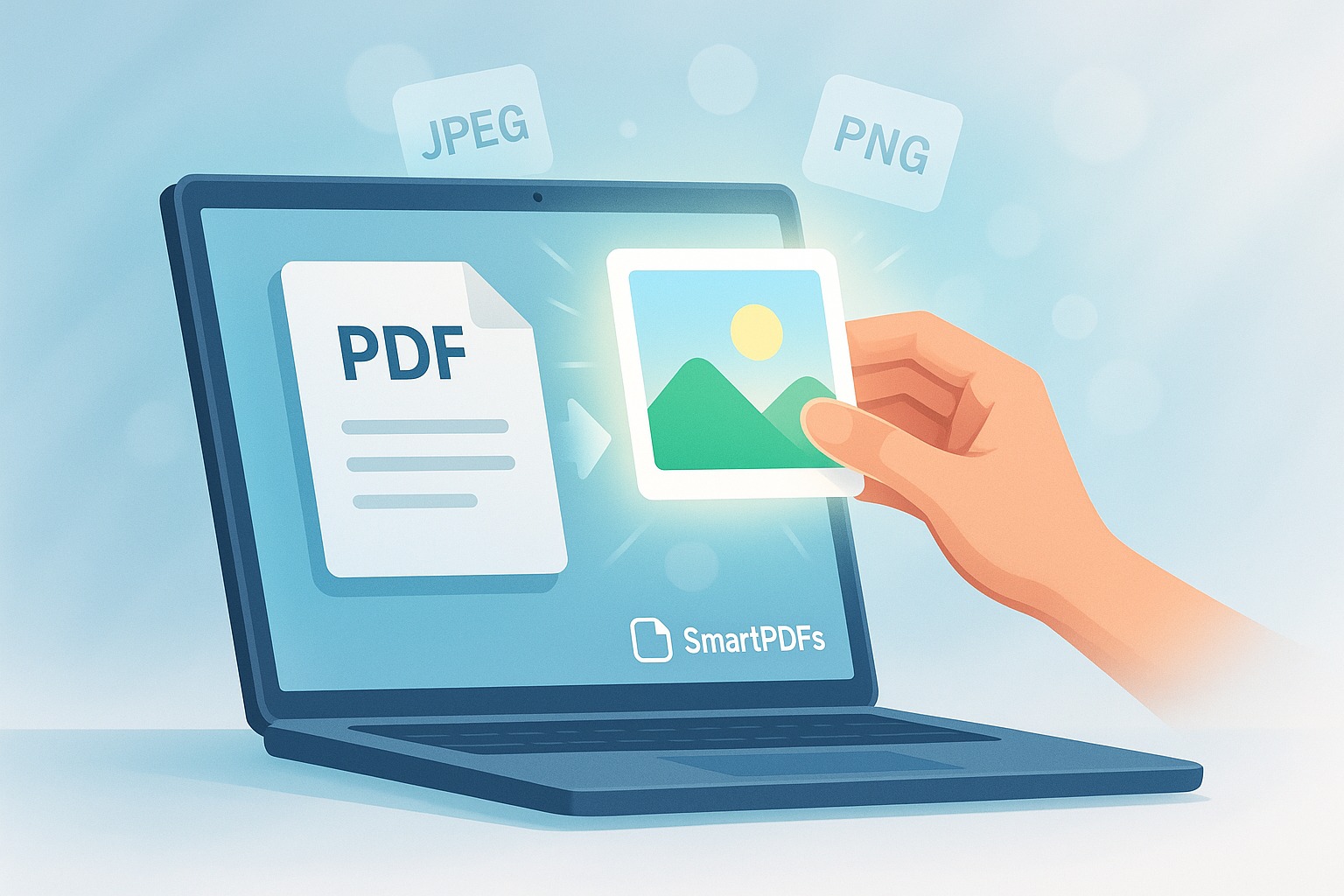
Unlock the Visual Content: Extracting Images from PDFs Made Easy
PDFs are fantastic for sharing documents, preserving formatting, and ensuring compatibility across various devices. However, sometimes you need to grab those valuable images embedded within. Whether it's a logo, a chart, or a photograph, extracting images from a PDF can be surprisingly simple. This guide will show you how to extract high-quality images from PDFs instantly and, best of all, for free using SmartPDFs.
Gone are the days of complex software and expensive subscriptions. With SmartPDFs, you can quickly and easily extract images from your PDFs directly in your web browser. No downloads, no installations, just pure image extraction power at your fingertips. Visit SmartPDFs Extract Images Tool to get started.
Why Extract Images from a PDF?
There are many reasons why you might need to extract images from a PDF document. Here are a few common scenarios:
- Repurposing Content: You might want to use an image from a PDF in a presentation, a blog post, or another document.
- Editing and Enhancing: Extracting an image allows you to edit it using photo editing software to improve its quality, adjust its colors, or remove unwanted elements.
- Archiving and Organization: You may want to create a separate archive of all the images contained within your PDF documents for easy access and organization.
- Recovering Lost Images: If you've lost the original image file but have a PDF containing it, extracting it can be a lifesaver.
Introducing SmartPDFs: Your Free PDF Image Extractor
SmartPDFs offers a suite of free online PDF tools designed to simplify your document management tasks. Our image extraction tool is specifically designed to be user-friendly and efficient, allowing you to extract high-resolution images from your PDFs in a matter of seconds.
Here's what makes SmartPDFs the best choice for extracting images from PDFs:
- Free to Use: No hidden fees or subscriptions required. SmartPDFs is completely free to use for all your image extraction needs.
- No Software Installation: Access our tools directly in your web browser without the need to download or install any software.
- User-Friendly Interface: Our intuitive interface makes it easy for anyone to extract images from PDFs, regardless of their technical expertise.
- High-Quality Image Extraction: We ensure that the extracted images retain their original quality and resolution.
- Secure and Private: Your files are processed securely and deleted from our servers after processing, ensuring your privacy.
- Fast and Efficient: Extract images quickly and efficiently, saving you valuable time and effort.
Step-by-Step Guide: Extracting Images from PDF Using SmartPDFs
Follow these simple steps to extract images from your PDF using SmartPDFs:
- Visit the SmartPDFs Image Extractor: Go to https://smartpdfs.in/extract-images-from-pdf.
- Upload Your PDF: Click the "Choose File" button and select the PDF document from which you want to extract images. You can also drag and drop the file directly onto the page.
- Start Extraction: Once the PDF is uploaded, click the "Extract Images" button.
- Download Your Images: SmartPDFs will process the PDF and extract all the images. You can then download the images individually or as a ZIP file.
That's it! In just a few simple steps, you can extract all the images from your PDF and use them for your projects.
Tips for Optimizing Image Extraction
Here are some additional tips to help you get the most out of the SmartPDFs image extraction tool:
- Large PDFs: For very large PDFs, the extraction process may take a bit longer. Please be patient and allow the tool to complete the process.
- Image Quality: The quality of the extracted images will depend on the original quality of the images within the PDF. If the images are low-resolution in the PDF, they will be low-resolution when extracted.
- File Formats: SmartPDFs will extract images in their original format (e.g., JPEG, PNG, GIF).
- Zipped Output: Downloading as a ZIP file is recommended for PDFs with many images as it simplifies the download process.
Alternative Methods for Extracting Images from PDF (and Why SmartPDFs is Better)
While SmartPDFs provides a convenient and free solution, other methods exist for extracting images from PDFs. Let's explore a few alternatives and see why SmartPDFs often comes out on top:
- Adobe Acrobat Pro: This is a powerful PDF editor that offers a wide range of features, including image extraction. However, it requires a paid subscription and can be quite expensive.
- Online PDF Converters: Some online PDF converters can convert a PDF to an image format (like JPG). However, this converts the *entire* PDF into a single image, which is not ideal if you only need specific images.
- Screenshotting: You can take screenshots of the images within the PDF. However, this often results in low-quality images.
- Other Free Online PDF Tools: Many other free online PDF tools exist, but they may have limitations, such as watermarks, file size restrictions, or privacy concerns.
Why SmartPDFs is the Preferred Choice:
SmartPDFs offers the best of all worlds: it's free, easy to use, provides high-quality image extraction, and respects your privacy. It avoids the cost of Adobe Acrobat Pro, the limitations of online converters, and the low quality of screenshots. Plus, you don't have to worry about watermarks or file size limits, as you might with other free tools.
Beyond Image Extraction: Exploring the SmartPDFs Suite
SmartPDFs offers a comprehensive suite of free online PDF tools to handle various document management tasks. In addition to image extraction, you can also use SmartPDFs to:
- Merge PDFs: Combine multiple PDF files into a single document.
- Split PDFs: Divide a PDF into multiple smaller files.
- Compress PDFs: Reduce the file size of your PDFs without sacrificing quality.
- Convert PDFs: Convert PDFs to other formats, such as Word, Excel, and PowerPoint.
- Edit PDFs: Add text, images, and annotations to your PDFs.
- Protect PDFs: Password-protect your PDFs to prevent unauthorized access.
Explore the full range of SmartPDFs tools at https://smartpdfs.in/ and discover how you can simplify your document management workflow.
Conclusion: Extracting Images from PDFs is a Breeze with SmartPDFs
Extracting images from PDFs doesn't have to be a complicated or expensive process. With SmartPDFs, you can quickly and easily extract high-quality images from your PDFs for free. Whether you need to repurpose content, edit images, or create an archive, SmartPDFs provides a simple and efficient solution. Visit SmartPDFs Extract Images Tool today and experience the ease of use and power of our free online PDF tools. Say goodbye to expensive software and complicated processes – SmartPDFs makes PDF management a breeze!



Comments (0)
Leave a Comment