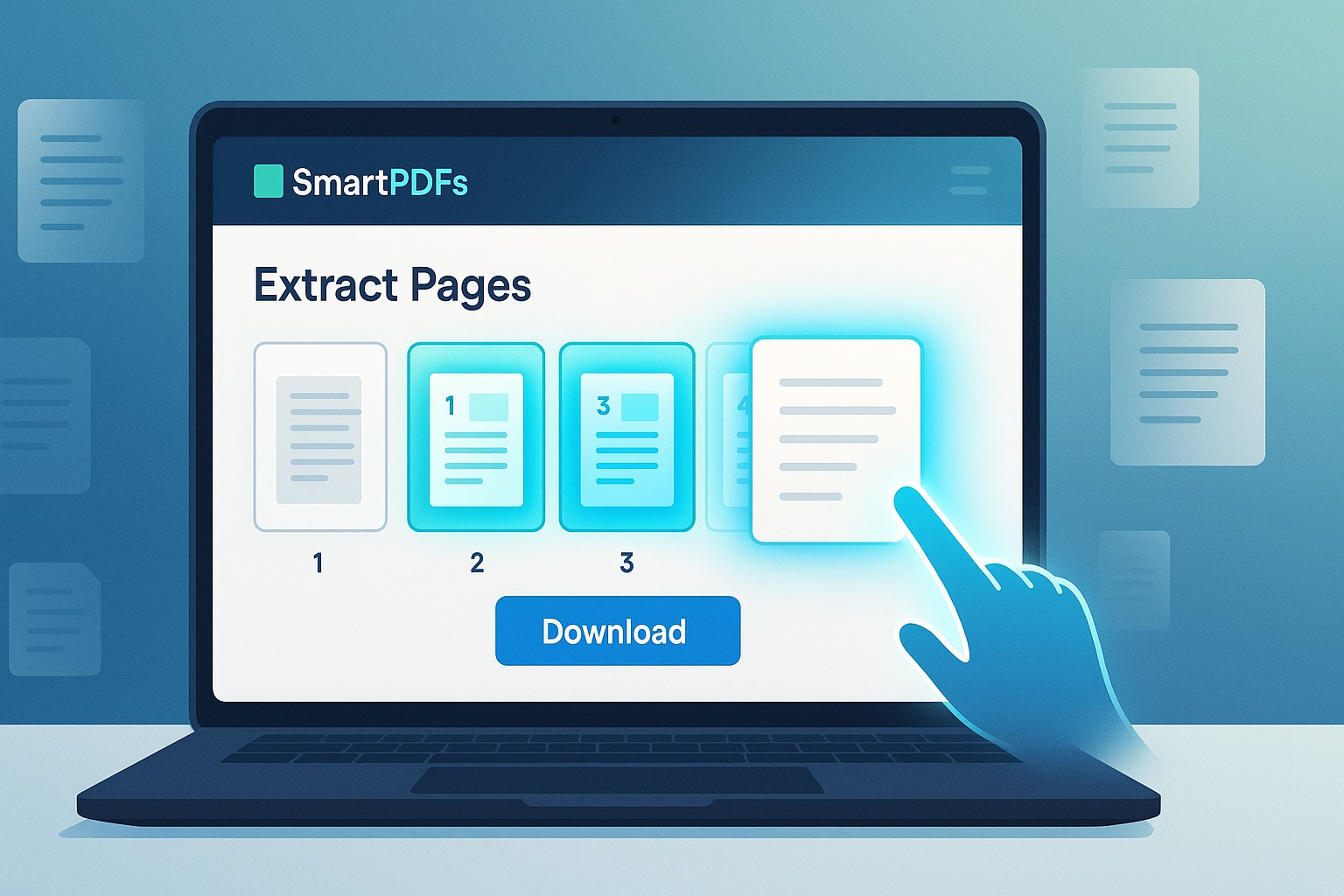
How to Extract Pages from a PDF File Without Adobe Acrobat
In today's fast-paced digital world, PDFs are the backbone of document sharing and archiving. From academic papers and legal contracts to project reports and e-books, they offer a reliable and consistent format. However, there often comes a time when you don't need the entire document; you just need a few specific pages. Perhaps you want to share a particular chapter, extract a specific section for a new report, or simply reduce a large file to a more manageable size.
The immediate thought for many might be to open the file in Adobe Acrobat. While Adobe Acrobat is a powerful tool, it comes with a significant cost and can be resource-intensive. What if you don't have a subscription? What if you're on a public computer or a device where you can't install software? The good news is that you absolutely can extract pages from a PDF file without Adobe Acrobat, and it's much easier than you might think. This guide will walk you through how to achieve this efficiently and entirely for free, introducing you to the seamless power of SmartPDFs.
Why Would You Need to Extract Pages from a PDF?
The need to pull out specific pages from a larger PDF document is a common requirement across various professional and personal scenarios. Understanding these use cases highlights why effective page extraction tools are so valuable:
- Targeted Sharing: Instead of sending a multi-hundred-page report, you can extract the 10-page executive summary or a specific appendix to share with colleagues or clients, ensuring they only get the relevant information without having to scroll through unnecessary content.
- Creating New Documents: You might be compiling research, creating a portfolio, or assembling a new report from various sources. Extracting relevant pages from different PDFs allows you to piece together a new, focused document without recreating content.
- Reducing File Size: Large PDFs can be cumbersome to send via email or upload to certain platforms. By extracting only the essential pages, you significantly reduce the file size, making it easier to manage and transfer.
- Removing Irrelevant Content: Sometimes a PDF contains introductory pages, blank pages, or outdated sections that you no longer need. Extracting the current, necessary pages effectively cleans up your document.
- Personal Use & Study: Students might extract specific chapters or notes from a large textbook PDF. Hobbyists might pull out a few recipes from a cookbook PDF or a specific pattern from a crafting guide.
The Challenge: Dealing with PDFs Without Premium Software
For years, Adobe Acrobat Pro has been the industry standard for advanced PDF manipulation. It offers a comprehensive suite of tools, including robust options for page extraction. However, its subscription model can be a barrier for many users, especially those who only occasionally need to perform such tasks. Installing bulky software is also not always feasible, particularly for:
- Budget-Conscious Users: Small businesses, freelancers, and individuals often can't justify the recurring cost of premium software.
- Temporary Needs: If you only need to extract pages once in a blue moon, purchasing a full suite is overkill.
- Public or Shared Computers: You can't install software on every computer you use, making online solutions indispensable.
- Cross-Platform Compatibility: While Adobe offers various versions, a web-based tool works seamlessly across Windows, macOS, Linux, and even mobile devices.
This is precisely where free, powerful online tools like SmartPDFs step in, offering a perfect solution to extract pages from a PDF online without any software installation or subscription fees.
Introducing SmartPDFs: Your Free Online Solution for PDF Page Extraction
SmartPDFs is a dedicated online platform designed to simplify your PDF-related tasks. Our mission is to provide powerful, easy-to-use, and completely free tools that empower you to manage your documents effectively. When it comes to extracting pages from a PDF without Adobe Acrobat, SmartPDFs offers a streamlined and intuitive experience.
Why choose SmartPDFs for page extraction?
- Absolutely Free: No hidden costs, no subscriptions, no trials. Our page extraction tool is 100% free to use.
- No Software Installation: Access our tool directly from your web browser. There's nothing to download or install, saving you disk space and installation time.
- User-Friendly Interface: Our design prioritizes simplicity. Even first-time users will find it incredibly easy to navigate and perform tasks.
- Fast and Efficient: We've optimized our tools for speed, ensuring your documents are processed quickly.
- Secure and Private: We understand the importance of document security. Your files are processed securely, and we automatically delete them from our servers after a short period, protecting your privacy.
- Cross-Device Compatibility: Whether you're on a desktop, laptop, tablet, or smartphone, SmartPDFs works flawlessly across all devices and operating systems.
Step-by-Step Guide: How to Extract Pages Using SmartPDFs
Ready to get started? Here’s a simple, step-by-step guide to effortlessly extract pages from your PDF file using SmartPDFs:
Step 1: Navigate to the SmartPDFs Extract PDF Tool
Open your web browser and go to the SmartPDFs website. Look for our 'Extract PDF' tool. It's usually clearly labeled among our suite of free PDF tools.
Step 2: Upload Your PDF File
You'll see a prominent area to upload your PDF. You have a few options:
- Drag and Drop: Simply drag your PDF file from your computer's folder and drop it directly onto the upload area.
- Click to Upload: Click the 'Choose File' or similar button, which will open your file explorer, allowing you to browse and select your PDF.
- Cloud Integration (if available): Some online tools also offer options to upload directly from cloud storage services like Google Drive or Dropbox.
Once uploaded, SmartPDFs will display a preview of your PDF, showing each page as a thumbnail.
Step 3: Select the Pages You Want to Extract
This is the core of the extraction process. SmartPDFs provides intuitive ways to select pages:
- Individual Selection: Click on the thumbnail of each page you wish to extract. A border or highlight will indicate that the page is selected.
- Page Ranges: If you need a sequence of pages (e.g., pages 5-10), you can usually specify this in a dedicated input field (e.g., type '5-10').
- Non-Contiguous Pages: For specific, non-sequential pages (e.g., pages 3, 7, 12), you can enter them separated by commas (e.g., '3,7,12') or simply click each individual thumbnail.
- All Pages: If you wanted to extract every page into separate files, some tools offer an 'Extract all pages individually' option.
Take your time to ensure you've selected precisely the pages you need. The visual thumbnails make this process very clear.
Step 4: Initiate the Extraction Process
After making your selections, locate the 'Extract Pages' or 'Apply' button (the exact wording might vary slightly but will be clear). Click it to start the process. SmartPDFs will quickly process your request.
Step 5: Download Your New PDF
Once the extraction is complete, SmartPDFs will provide a download link for your new PDF file, containing only the pages you selected. Click the download button, and your freshly extracted PDF will be saved to your device. You can then open, view, or share this new, smaller document as needed.
Advanced Tips for PDF Page Extraction
While the basic steps are straightforward, here are some tips to get the most out of your PDF page extraction experience with SmartPDFs:
- Combine Extracted Pages: If you've extracted pages from multiple different PDFs and want to combine them into one new document, remember that SmartPDFs also offers a robust Merge PDF tool. This allows you to create a completely new, custom PDF from various sources.
- Renaming for Clarity: After downloading, immediately rename your extracted PDF to something descriptive (e.g., 'Project_Report_Executive_Summary.pdf' or 'Chapter_3_Economics.pdf'). This helps with organization and avoids confusion.
- Preview Before Finalizing: Always take a moment to preview the extracted PDF after downloading to ensure all the correct pages are included and nothing vital was missed.
- Consider Compression: If your extracted PDF is still a bit large for its content (e.g., it contains many images), consider running it through the SmartPDFs Compress PDF tool to further reduce its file size without significant loss of quality.
- Difference Between 'Extract' and 'Split': While similar, 'extract' typically means taking selected pages to form a *new* PDF, leaving the original intact. Our 'Split PDF' tool, on the other hand, often refers to dividing a PDF into multiple smaller PDFs (e.g., splitting a 100-page PDF into 10 separate 10-page documents, or splitting every page into its own PDF). Understand which tool best suits your specific need.
Benefits of Using Online PDF Tools like SmartPDFs
The move towards online PDF solutions isn't just about avoiding Adobe Acrobat; it's about embracing a more flexible, accessible, and often more efficient way of working with documents:
- Cost-Effectiveness: The most obvious benefit – these tools are free! This democratizes access to powerful PDF functionalities that were once locked behind expensive software licenses.
- Accessibility Everywhere: As long as you have an internet connection, you can access SmartPDFs from any device, anywhere in the world. This is ideal for remote work, travel, or quick tasks on the go.
- No Installation Hassle: Say goodbye to lengthy downloads, installation wizards, and software updates. Online tools are always up-to-date and ready to use instantly.
- Resource-Friendly: Online tools don't consume your computer's local processing power or storage space, keeping your system fast and clutter-free.
- Simplified User Experience: Many online tools are designed with a focus on simplicity and intuitiveness, making complex tasks like page extraction accessible to everyone, regardless of their technical proficiency.
- Security and Privacy: Reputable online PDF services like SmartPDFs prioritize your data security. We employ encryption and ensure that uploaded files are automatically deleted from our servers after processing, giving you peace of mind.
Beyond Extraction: Other SmartPDFs Tools You'll Love
SmartPDFs is not just about extracting pages. We offer a comprehensive suite of tools designed to handle almost any PDF need you might encounter. Once you've mastered how to extract pages from a PDF, explore these other powerful, free options:
- Merge PDF: Combine multiple PDF files into one single document. Perfect for compiling reports, presentations, or combining extracted pages.
- Split PDF: Divide a large PDF into several smaller ones, either by specific page ranges or by splitting every page into its own file.
- Compress PDF: Reduce the file size of your PDFs for easier sharing and storage, without compromising quality significantly.
- Convert PDF: Transform PDFs to other formats like Word, Excel, PowerPoint, or JPG, and vice-versa.
- Edit PDF: Make simple text and image edits directly in your browser.
- Rotate PDF: Correct the orientation of specific pages or the entire document.
- Delete PDF Pages: Quickly remove unwanted pages from your document.
- Add Page Numbers: Insert customizable page numbers to your PDFs for better organization.
Each tool is designed with the same commitment to ease of use, speed, and security, making SmartPDFs your ultimate destination for all PDF management tasks.
Common Scenarios for Page Extraction in Action
Let's consider a few real-world examples where extracting PDF pages without Adobe Acrobat becomes incredibly useful:
- For Students: Imagine you have a 300-page PDF textbook. You only need to review Chapter 5 (pages 78-102) for an upcoming exam. Using SmartPDFs, you can quickly extract just those 25 pages, creating a focused study guide without dealing with the entire bulky file.
- For Professionals: A marketing team receives a comprehensive quarterly report in PDF format, but they only need to present the 'Q2 Performance Overview' section, which spans pages 15-22, to stakeholders. They can extract these specific pages and merge them with their own presentation cover page using SmartPDFs' merge tool.
- For Personal Use: You've downloaded a large PDF recipe book, but you only want to save the dessert recipes (pages 120-145) to your tablet for easy access in the kitchen. SmartPDFs allows you to pull out just those pages into a new, compact PDF.
- For Researchers: A researcher finds a lengthy academic paper online but only needs the 'Methodology' and 'Results' sections. By extracting these critical sections, they can focus on the most relevant data and integrate it into their literature review.
Conclusion
The days of needing expensive, resource-heavy software like Adobe Acrobat to perform essential PDF tasks are long gone. With free, intuitive online platforms like SmartPDFs, you have all the power you need right at your fingertips. Learning how to extract pages from a PDF file without Adobe Acrobat not only saves you money but also offers unparalleled convenience, accessibility, and efficiency.
Whether you're a student, a professional, or simply managing personal documents, SmartPDFs provides a secure, fast, and incredibly simple way to isolate and extract the exact pages you need. No installations, no hidden fees, just straightforward PDF solutions. Dive into the world of streamlined document management and make SmartPDFs your go-to for all your PDF needs. Try our Extract PDF tool today and experience the difference!



Comments (0)
Leave a Comment