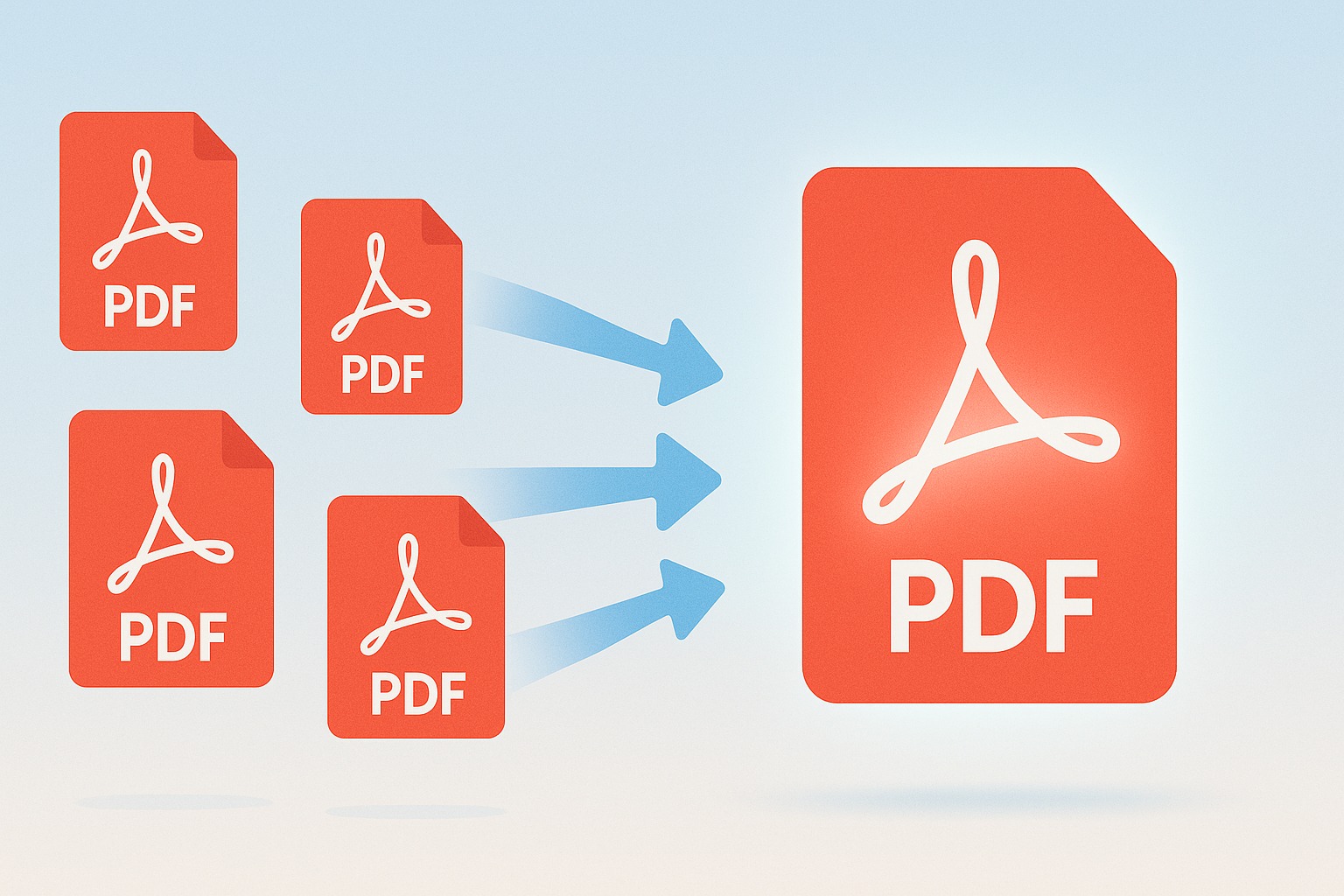
In today’s digital world, managing documents efficiently is crucial for everyone, from students and freelancers to corporate professionals. We constantly deal with reports, invoices, presentations, and contracts, often in PDF format. But what happens when you have several related PDF files that you need to present, send, or archive as a single, cohesive document? Juggling multiple attachments can be cumbersome and unprofessional.
That’s where the power of merging PDF files comes in. Combining several PDFs into one not only streamlines your workflow but also enhances organization and ease of sharing. Imagine having all chapters of a book, all monthly reports, or all components of a project proposal consolidated into one accessible file. The benefits are undeniable.
This comprehensive guide will walk you through everything you need to know about how to merge multiple PDF files into one easily. We'll explore why this capability is essential, delve into the various methods available, and most importantly, show you how to leverage the powerful and free tools at SmartPDFs to achieve this seamlessly. Get ready to transform your document management!
Why Merge PDF Files? The Benefits You Can't Ignore
Before we dive into the 'how,' let's understand the 'why.' Merging PDF files offers a multitude of advantages that can significantly improve your productivity and document handling experience:
- Streamlined Sharing: Instead of sending multiple attachments, you can send one clean, consolidated PDF. This reduces clutter in email inboxes and ensures all relevant information is together.
- Enhanced Organization: Keep related documents in one place. This makes it easier to find, categorize, and archive files, reducing the risk of misplacing crucial information.
- Improved Presentation: For reports, proposals, or portfolios, a single merged PDF presents a more professional and coherent image than a collection of separate documents.
- Easier Printing: Printing one large PDF is often simpler and less prone to errors than printing several smaller files individually.
- Reduced Clutter: Consolidate several small PDFs into one, reducing the number of files on your desktop or in your folders.
- Better Accessibility: When all information is in one document, it's easier for others (and yourself) to navigate and read sequentially without opening and closing multiple files.
- Compliance and Archiving: Many industries and regulations require documents to be stored in specific, consolidated formats for archiving purposes. Merging helps meet these requirements.
Understanding Your Options: Online vs. Offline PDF Mergers
When it comes to merging PDF files, you generally have two main approaches:
Online PDF Mergers (Web-Based Tools)
Online PDF mergers are web applications that allow you to combine PDFs directly in your browser. These tools are often free, require no software installation, and can be accessed from any device with an internet connection.
- Pros: Accessible anywhere, no installation, often free, user-friendly interfaces.
- Cons: Requires an internet connection, reliance on cloud servers for processing (consider data privacy for sensitive documents), potential file size limits.
SmartPDFs falls into this category, offering a robust and secure online solution for merging your documents without any cost.
Offline PDF Mergers (Desktop Software)
Desktop software applications are programs you install directly on your computer. These often come with a wider range of features beyond just merging, such as advanced editing, conversion, and security options.
- Pros: Works offline, often more robust features, potentially better security for highly sensitive local files, no file size limits (usually).
- Cons: Requires installation, can be expensive (for premium features), takes up hard drive space, platform-dependent (Windows, Mac, Linux).
For most users who need a quick, reliable, and free way to combine PDFs, an online tool like SmartPDFs is the ideal choice due to its convenience and accessibility.
Merging PDFs with SmartPDFs: A Step-by-Step Guide
At SmartPDFs, we believe that powerful PDF tools should be accessible to everyone, free of charge. Our online PDF merger is designed with simplicity and efficiency in mind, allowing you to combine multiple PDF files into one effortlessly. Here’s how you can do it:
1. How to Access the SmartPDFs Merge Tool
Your journey begins at the SmartPDFs website. Simply open your web browser and navigate to the SmartPDFs homepage. You'll find a clear, intuitive interface with various PDF tools listed. Look for the 'Merge PDF' tool – it's usually prominently displayed or can be found in a 'Tools' or 'All Tools' menu.
Alternatively, you can often find direct links to specific tools like 'Merge PDF' right from the main page, making your access even quicker. Our platform is designed for straightforward navigation, ensuring you spend less time searching and more time getting things done.
2. Uploading Your PDF Files
Once you're on the 'Merge PDF' page, you'll see an area designated for uploading your files. This is typically a large button or a drag-and-drop zone.
- Click to Upload: Click the 'Choose Files' or 'Upload Files' button. A file explorer window will open, allowing you to browse your computer and select the PDF documents you wish to combine. You can select multiple files at once by holding down the Ctrl (Windows) or Command (Mac) key while clicking on each file.
- Drag and Drop: For even faster uploading, simply drag your PDF files directly from your desktop or a folder and drop them into the designated area on the SmartPDFs website.
SmartPDFs allows you to upload as many PDF files as you need, up to reasonable limits, making it incredibly versatile for large projects. Our secure servers handle your uploads efficiently, ensuring a smooth experience.
3. Arranging and Combining Your PDFs
After your files are uploaded, they will appear on the SmartPDFs interface. This is a crucial step where you can organize your documents exactly how you want them to appear in the final merged PDF.
- Rearrange Files: Each uploaded PDF will be represented as a thumbnail or an icon. You can easily drag and drop these thumbnails to change their order. For example, if you want 'Introduction.pdf' to come before 'Chapter1.pdf', simply drag 'Introduction.pdf' to the left of 'Chapter1.pdf'.
- Rotate Pages (if available): Some advanced online tools, or options within SmartPDFs, might allow you to rotate individual pages or entire documents before merging. While our primary focus is on efficient merging, always check for such options if specific page orientations are critical.
- Review and Confirm: Take a moment to review the order of your documents. This is your last chance to ensure everything is perfect before the final merge. Once you're satisfied with the sequence, locate the 'Merge PDF' or 'Combine' button, usually at the bottom or side of the interface, and click it.
The SmartPDFs system will then swiftly process your files, combining them into a single, unified PDF document according to your specified order.
4. Downloading Your Merged PDF
Once the merging process is complete, which typically takes only a few seconds or minutes depending on the size and number of your files, SmartPDFs will present you with the merged document.
- Download Button: A prominent 'Download' button will appear. Click this button to save your newly combined PDF file to your computer's downloads folder or a location you choose.
- File Naming: The merged file will usually be given a default name (e.g., 'merged.pdf' or 'SmartPDFs_combined.pdf'). You can easily rename it after downloading to something more descriptive (e.g., 'ProjectProposal_Final.pdf').
- Secure Deletion: At SmartPDFs, we prioritize your privacy and security. After you download your file, uploaded documents and the merged output are typically removed from our servers after a short period, ensuring your data remains confidential.
And that's it! You've successfully merged multiple PDF files into one using the free and efficient tools at SmartPDFs.
Tips for Effective PDF Merging
While the process is straightforward, here are some tips to make your PDF merging experience even smoother and more effective:
- Name Files Logically: Before uploading, give your files descriptive names (e.g., 'Section_1_Intro.pdf', 'Section_2_Content.pdf'). This makes it easier to arrange them correctly in the merger tool.
- Check Page Orientation: If some of your source PDFs have mixed portrait and landscape orientations, consider rotating them to a consistent view before merging, if your tool allows, or be prepared for the final document to have mixed orientations.
- Review Content Before Merging: Quickly skim through each individual PDF to ensure it contains the correct information and there are no blank pages or errors you'd rather fix beforehand.
- Backup Original Files: Always keep copies of your original, unmerged PDF files. This way, if you need to make changes or re-merge with a different order, you have the source documents readily available.
- Mind File Size: While SmartPDFs can handle large files, extremely large collections of high-resolution PDFs might take longer to process. If your internet connection is slow, consider merging in smaller batches if absolutely necessary, although our tool is optimized for performance.
- Security and Privacy: For highly sensitive documents, always use reputable online tools like SmartPDFs, which clearly state their privacy policies regarding file handling and deletion.
Common Challenges and Troubleshooting
While merging PDFs is generally a smooth process, you might occasionally encounter minor hiccups. Here are some common challenges and how to address them:
- Files Fail to Upload:
- Check Internet Connection: Ensure you have a stable internet connection.
- File Size Limit: Although SmartPDFs has generous limits, check if your file is exceptionally large. You might need to compress it first (SmartPDFs also offers a 'Compress PDF' tool!).
- File Corruption: If a PDF is corrupted, it might not upload. Try opening it with a PDF reader; if it fails, the file might be damaged.
- Incorrect Order in Merged PDF:
- This usually happens if you didn't properly reorder the files in the online tool before clicking 'Merge'. Always double-check the arrangement of thumbnails on the SmartPDFs interface before confirming.
- Merged PDF Won't Open or Looks Strange:
- Try a Different Viewer: Sometimes, a specific PDF viewer might have issues. Try opening the merged PDF with another program (e.g., Adobe Acrobat Reader, Google Chrome's built-in PDF viewer).
- Re-merge: If the issue persists, try merging the files again from scratch.
- Update Viewer: Ensure your PDF viewer software is up to date.
- Slow Processing:
- Larger files or slower internet speeds can affect processing time. Be patient.
- Close other bandwidth-intensive applications or browser tabs.
If you encounter persistent issues with SmartPDFs, often clearing your browser's cache and cookies or trying a different browser can resolve minor technical glitches.
Beyond Merging: Other Essential PDF Tools from SmartPDFs
Merging PDFs is just one of the many powerful, free tools available at SmartPDFs. Once you’ve experienced the ease and efficiency of our merger, we encourage you to explore our full suite of PDF solutions designed to handle all your document needs:
- Split PDF: Need to extract specific pages or divide a large PDF into smaller, manageable files? Our Split PDF tool makes it incredibly easy.
- Compress PDF: Reduce the file size of your PDFs without significant loss of quality, perfect for emailing or uploading to websites.
- Convert PDF: Transform PDFs to and from other popular formats like Word, Excel, PowerPoint, JPG, and more.
- Edit PDF: Make simple edits to your PDF documents directly in your browser.
- Protect PDF: Add passwords to secure your sensitive PDF files from unauthorized access.
- Unlock PDF: Remove passwords from PDFs you have the right to access.
- Rotate PDF: Correct the orientation of pages within your PDF document.
- Sign PDF: Electronically sign your PDF documents quickly and securely.
With SmartPDFs, you have a comprehensive, all-in-one resource for every PDF challenge, completely free and accessible from anywhere. Our commitment is to provide intuitive, high-quality tools that empower you to manage your documents with confidence and ease.
Conclusion
The ability to merge multiple PDF files into one is an indispensable skill in today's digital landscape. It simplifies organization, enhances presentation, and streamlines sharing, making your digital life significantly more manageable. Whether you're compiling a detailed report, organizing academic notes, or consolidating business documents, combining PDFs is a powerful tool to have in your arsenal.
As demonstrated, SmartPDFs offers a supremely easy, free, and secure way to achieve this. Our intuitive online platform removes the complexity, allowing you to quickly upload, arrange, and download your consolidated PDF without any software installation or hidden costs. We prioritize your data security and user experience, making us the go-to solution for all your PDF needs.
Stop struggling with scattered documents and embrace the efficiency of a unified file. Visit SmartPDFs today and experience how effortlessly you can merge multiple PDF files into one, and discover a whole world of other free PDF tools designed to empower your productivity. Happy merging!



Comments (0)
Leave a Comment