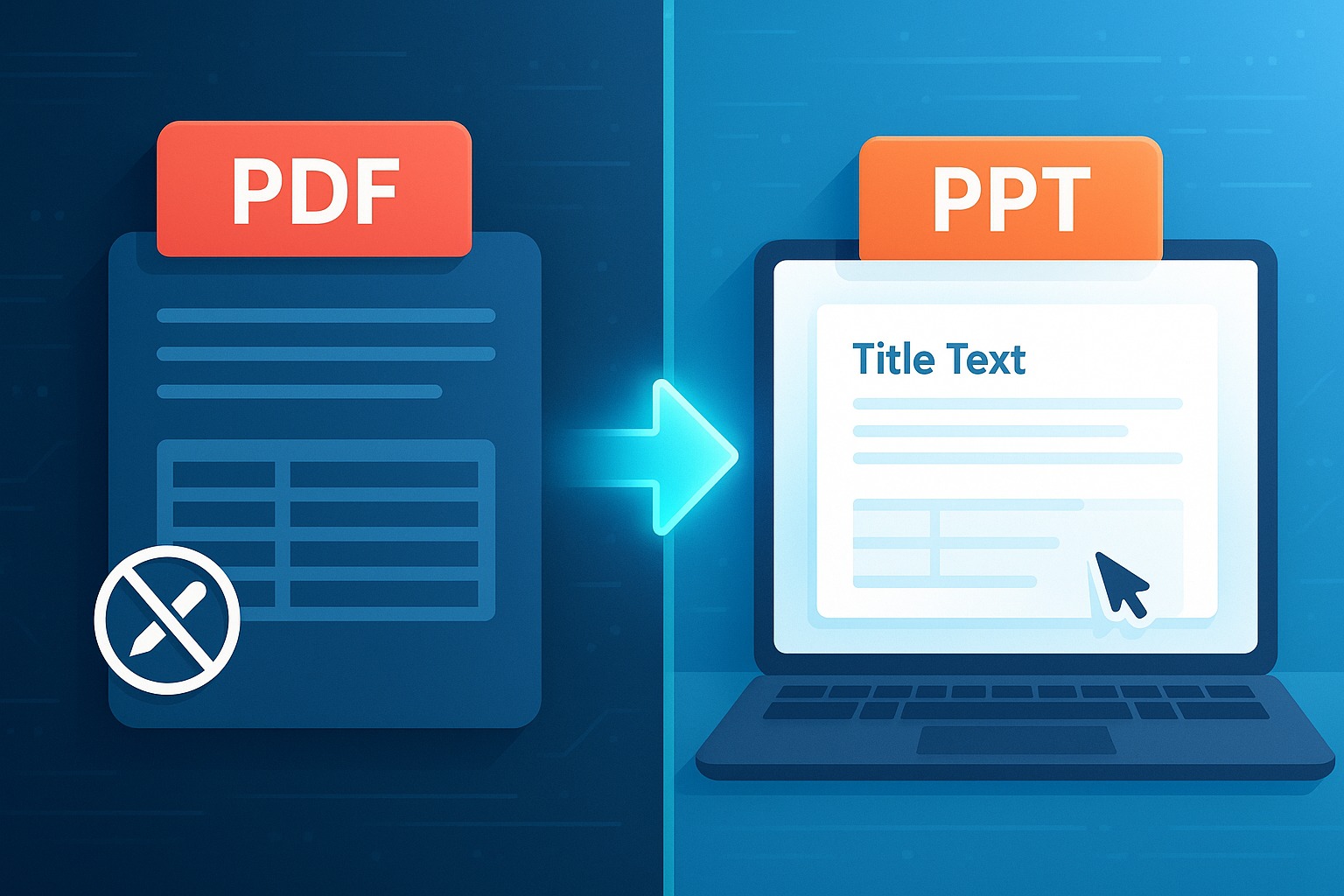
In today's fast-paced digital world, information moves quickly, and presentations need to keep up. You might have a fantastic presentation, packed with valuable insights and stunning visuals, but it's locked away in a PDF format. What if you need to update a statistic, tweak a design element, or completely repurpose it for a new audience? Recreating an entire presentation from scratch is a monumental task, draining your precious time and effort.
Imagine being able to take those static PDF slides and inject new life into them, transforming them into a fully editable PowerPoint (PPT) presentation. This isn't just a convenience; it's a productivity superpower. By converting your old PDF presentations into an adaptable PPT format, you unlock a world of possibilities for updates, collaboration, and reuse.
At SmartPDFs, we understand the need for efficiency and flexibility. That's why we've developed a robust and free PDF to PowerPoint converter, designed to make this transformation seamless and stress-free. Say goodbye to the frustrations of rigid PDFs and hello to the dynamic world of editable PPTs!
Why Convert PDF to PPT? The Strategic Advantages
You might be thinking, "A PDF is fine, why bother converting?" The truth is, while PDFs are excellent for sharing final, unalterable documents, they fall short when it comes to dynamic use. Here's why converting your PDF presentations to PowerPoint is a strategic move:
1. Unmatched Editing Flexibility
- Update Content: Easily change text, numbers, charts, and images without starting over. This is crucial for reports, proposals, and training materials that require frequent updates.
- Design Revisions: Adjust layouts, fonts, colors, and branding to match current guidelines or new aesthetic preferences.
- Correct Errors: Spot a typo or an outdated piece of information? Fix it in seconds, not hours.
2. Enhanced Collaboration Opportunities
- Teamwork: PowerPoint allows multiple users to work on the same presentation, track changes, and leave comments, making collaboration with colleagues much smoother.
- Feedback Integration: Incorporate feedback from stakeholders directly into the slides, streamlining the review process.
3. Dynamic Content and Engagement
- Animations & Transitions: Add engaging animations to text and objects, and creative transitions between slides to make your presentation more captivating.
- Multimedia Integration: Easily embed videos, audio clips, and interactive elements directly into your slides for a richer viewing experience.
4. Seamless Branding and Consistency
- Brand Refresh: If your company undergoes a rebrand, converting old PDFs to PPTs allows you to quickly apply new logos, color schemes, and fonts across all your legacy presentations.
- Template Application: Apply new master slide templates to ensure a consistent look and feel throughout your entire presentation library.
5. Effortless Reuse and Adaptation
- Repurpose for Audiences: Tailor a single core presentation for different audiences (e.g., a technical deep dive for engineers vs. a high-level overview for executives).
- Modular Content: Extract specific slides or sections from an old presentation to create new, specialized presentations, saving immense amounts of time.
- Language Localization: Easier to translate content into different languages while maintaining original formatting.
6. Improved Accessibility
- Screen Reader Compatibility: Properly structured PowerPoint presentations are more accessible for individuals using screen readers and other assistive technologies, unlike many static PDFs.
- Accessibility Features: PowerPoint offers built-in tools to check for accessibility issues and ensure your content reaches a broader audience.
The Pitfalls of Manual Conversion (and Why Tools Are Essential)
Without a dedicated conversion tool, trying to transform a PDF into an editable PPT can feel like trying to fit a square peg in a round hole. Here are some common frustrations you'd face:
- Recreating from Scratch: The most time-consuming and tedious method, requiring you to manually re-type text, re-insert images, and painstakingly recreate layouts slide by slide. This is prone to errors and inconsistency.
- Copy-Pasting Nightmares: Copying text directly from a PDF often leads to formatting issues, missing fonts, and broken layouts when pasted into PowerPoint. Images might lose quality or become difficult to resize accurately.
- Image-Based PDFs: If your PDF is essentially a scan of a document (an image-based PDF), you can't even copy text. You'd need Optical Character Recognition (OCR) software first, adding an extra layer of complexity and potential inaccuracies.
- Loss of Elements: Complex elements like vector graphics, embedded fonts, and specific spacing can be lost or distorted during manual attempts.
These challenges highlight why a reliable and efficient PDF to PowerPoint converter isn't just a convenience – it's a necessity for anyone looking to save time and maintain content integrity.
Introducing SmartPDFs: Your Go-To PDF to PowerPoint Converter
This is where SmartPDFs steps in to revolutionize your workflow. Our free online PDF to PowerPoint converter is engineered to tackle these challenges head-on, providing you with a quick, accurate, and hassle-free solution. We believe that turning your old PDF slides into a new, editable PowerPoint presentation should be simple, not a struggle.
Why choose SmartPDFs for your conversion needs?
- Completely Free: No hidden costs, no subscriptions required. Convert as many files as you need.
- Lightning Fast: Our powerful servers process your files quickly, getting your editable PPT back to you in moments.
- Accuracy Matters: We pride ourselves on preserving your original formatting, fonts, images, and layouts as accurately as possible, minimizing the need for extensive post-conversion edits.
- User-Friendly Interface: Designed for simplicity, our tool is intuitive and easy for anyone to use, regardless of technical expertise.
- Secure & Private: We prioritize your data security. All uploaded files are automatically deleted from our servers after a short period, ensuring your sensitive information remains private.
Stop wasting hours trying to rebuild presentations. Let SmartPDFs do the heavy lifting for you. Visit our dedicated converter page today: https://smartpdfs.in/pdf-to-powerpoint-converter
Step-by-Step Guide: How to Convert Your PDF Presentation to PPT with SmartPDFs
Converting your PDF to an editable PowerPoint presentation with SmartPDFs is incredibly straightforward. Follow these simple steps to transform your documents:
Step 1: Access the SmartPDFs Converter
Open your web browser and navigate directly to our dedicated PDF to PowerPoint converter page: https://smartpdfs.in/pdf-to-powerpoint-converter. You'll see a clean, intuitive interface ready for your file.
Step 2: Upload Your PDF File
You have a couple of easy options here:
- Drag & Drop: Simply drag your PDF file from your computer's folder and drop it onto the designated area on our website.
- Click to Upload: Click the "Choose File" or "Upload PDF" button. A file explorer window will open, allowing you to browse your computer and select the PDF presentation you wish to convert.
Once selected, the file will begin uploading to our secure servers.
Step 3: Initiate the Conversion
After your PDF is uploaded, SmartPDFs will automatically begin the conversion process. Our advanced algorithms work quickly to analyze your PDF's structure, extract text, images, and formatting, and reconstruct it into a PowerPoint-compatible format. You'll usually see a progress indicator, letting you know the conversion is underway.
Step 4: Download Your Editable PPT
Once the conversion is complete, a "Download" button will appear. Click this button, and your newly created, editable PowerPoint (.PPTX) file will be downloaded directly to your computer. The file will typically save to your default downloads folder.
Step 5: Open and Start Editing in PowerPoint
Locate the downloaded PPTX file on your computer and open it with Microsoft PowerPoint (or any compatible presentation software). You'll now have a fully editable version of your original PDF presentation, ready for you to customize, update, and enhance!
Tips for Optimizing Your Newly Converted PowerPoint Presentation
While SmartPDFs excels at preserving formatting, a little post-conversion refinement can make your presentation truly shine. Here are some tips:
1. Review and Refine
- Quick Scan: Do a quick visual check of every slide. Look for any minor formatting glitches, misplaced elements, or font inconsistencies that might need a tweak.
- Text Flow: Ensure all text boxes are appropriately sized and text isn't overflowing or cut off.
2. Enhance Visuals
- High-Resolution Images: Replace any lower-quality images that might have been in the original PDF with higher-resolution versions if available.
- Modern Graphics: Update outdated clip art or stock photos with fresh, modern graphics that align with current design trends.
3. Add Interactivity and Engagement
- Animations: Thoughtfully add animations to key bullet points or objects to guide your audience's attention.
- Transitions: Use subtle, professional transitions between slides to create a smooth flow.
- Embedded Media: Integrate relevant videos, audio, or live web content to make your presentation more dynamic.
4. Update Content
- Latest Data: Incorporate the most current statistics, figures, and case studies to keep your presentation relevant and impactful.
- New Insights: Add any new information, research findings, or strategic directions that have emerged since the PDF was created.
5. Check Master Slides
- Consistency: Ensure that the slide master (View > Slide Master) reflects your desired branding, fonts, and layout for consistent design across all slides.
- Layouts: If you plan to add new slides, ensure the existing layout options in the slide master meet your needs.
6. Accessibility Considerations
- Alt Text: Add descriptive alternative text to all images, charts, and graphs for screen reader users.
- Reading Order: Verify that the reading order of elements on your slides is logical for assistive technologies.
Real-World Scenarios: Who Benefits from PDF to PPT Conversion?
The ability to convert and reuse PDF presentations is valuable across a multitude of professions and industries:
- Business Professionals: Sales teams can quickly update product features in old proposals; marketing departments can refresh campaign summaries; HR can adapt onboarding materials.
- Educators & Students: Teachers can update lecture slides with new research or interactive elements; students can modify old project presentations for new assignments.
- Researchers: Adapt conference posters or old research summaries into new, dynamic presentations for different audiences or publications.
- Trainers & Consultants: Repurpose training modules or client reports with ease to suit various client needs or incorporate new industry standards.
- Event Organizers: Modify old event schedules, speaker bios, or sponsorship decks for recurring annual events.
- Anyone with Legacy Content: If you have a library of valuable information stuck in old PDF reports or documents, converting them to PPT opens up new ways to present and share that knowledge.
Beyond Conversion: Other SmartPDFs Tools You Might Find Useful
While our PDF to PowerPoint converter is a standout tool, SmartPDFs offers a comprehensive suite of free PDF tools designed to make your document management easier:
- PDF Editor: Make quick edits to text and images within your PDFs.
- Merge PDF: Combine multiple PDF files into one cohesive document.
- Split PDF: Extract specific pages or divide a large PDF into smaller files.
- Compress PDF: Reduce file size without compromising quality, ideal for email or web sharing.
- Convert PDF to Word/Excel/JPG: Expand your conversion capabilities for various document types.
Explore these and many other tools at SmartPDFs.in to streamline all your PDF-related tasks.
Conclusion: Unleash the Power of Your Presentations with SmartPDFs
Don't let valuable content gather dust in static PDF files. The ability to reuse your PDF presentation in PPT is a game-changer, saving you invaluable time and effort while significantly extending the lifespan and utility of your work. Whether you're a student, a professional, or anyone in between, the flexibility of an editable PowerPoint file means your ideas can always be current, engaging, and perfectly tailored.
SmartPDFs provides a free, fast, and highly accurate solution to transform your PDFs into dynamic PowerPoint presentations. Say goodbye to manual recreation and hello to efficiency. Ready to unlock the full potential of your presentations?
Visit SmartPDFs PDF to PowerPoint Converter today and experience the difference!



Comments (0)
Leave a Comment