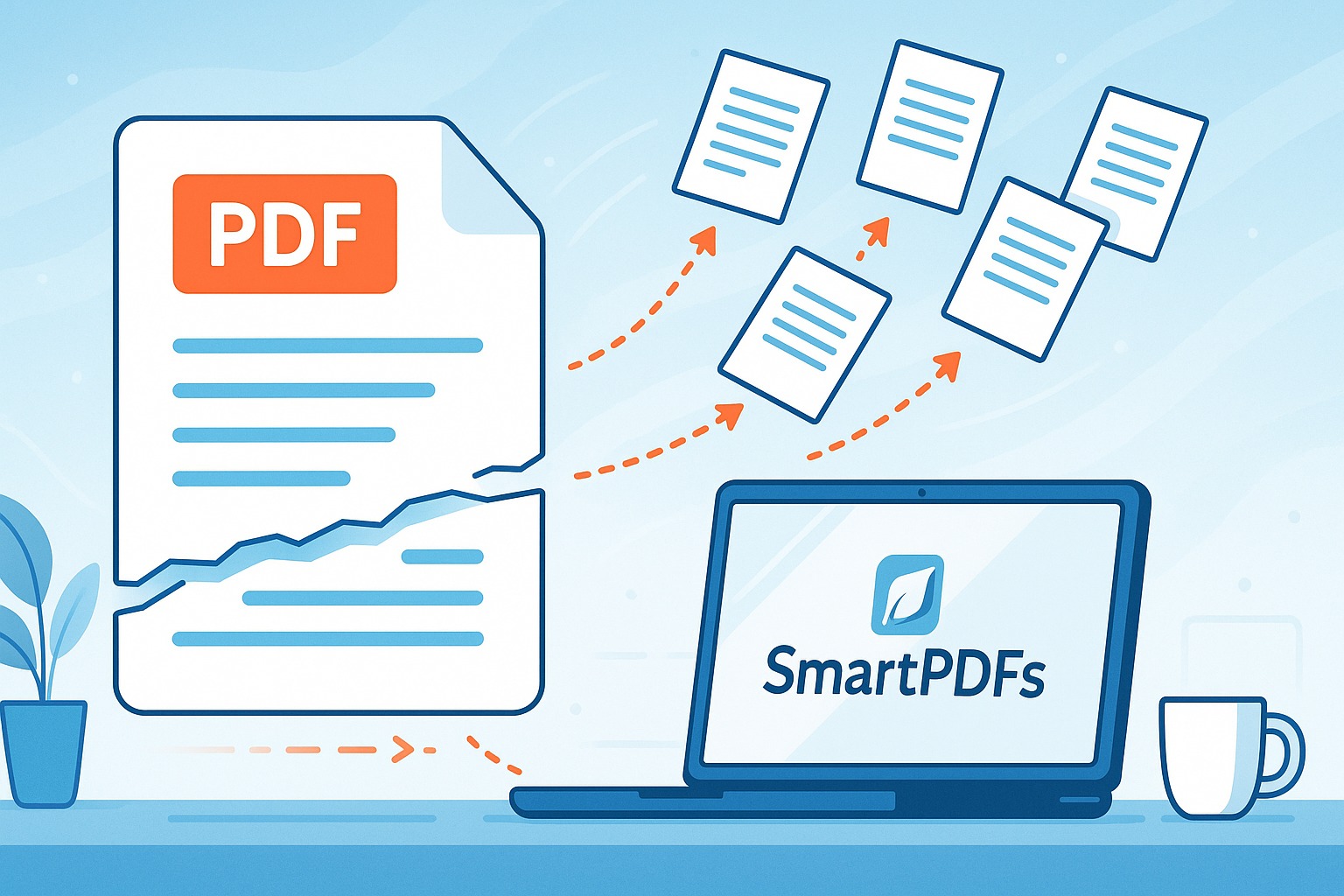
How to Split a PDF into Separate Pages Online with SmartPDFs
Large PDF files can sometimes be unwieldy. Whether you need to extract a specific page, share a portion of the document, or simply organize your information better, splitting a PDF into separate pages is a valuable skill. Fortunately, with SmartPDFs, this process is incredibly easy and completely free! No more complicated software installations or expensive subscriptions. This guide will walk you through the simple steps to split your PDFs online, transforming large documents into manageable individual pages.
This article will show you a step-by-step guide on how to split PDF documents into individual pages using SmartPDFs. It's a quick, easy, and free way to get the job done.
Why Split a PDF into Separate Pages?
Before we dive into the "how," let's explore the "why." There are numerous reasons why you might want to split a PDF file:
- Extract Specific Pages: Need just one or two pages from a lengthy report? Splitting allows you to extract those specific pages without having to share the entire document.
- Reduce File Size: Sometimes, a large PDF can be cumbersome to email or upload. Splitting it into smaller, page-specific files can significantly reduce the overall file size.
- Improve Organization: For research papers, presentations, or even e-books, separating chapters or sections into individual PDFs can greatly improve organization and accessibility.
- Simplify Sharing: Sharing only the relevant information becomes much easier when you can send individual pages instead of the entire document.
- Enhance Collaboration: Splitting a large document among team members for individual review and editing allows for parallel work and increased efficiency.
Introducing SmartPDFs: Your Free PDF Solution
SmartPDFs offers a suite of free online PDF tools, including a powerful and easy-to-use PDF splitter. The best part? You don't need to download or install any software. Everything happens securely in your web browser. Our platform is designed with simplicity and user-friendliness in mind. We believe that working with PDFs should be straightforward and accessible to everyone.
SmartPDFs stands out because it provides a cost-effective and hassle-free method to split PDF files online. It does not require any registration, downloads, or installations. You can directly upload and process PDF files in your web browser. SmartPDFs is a free and easy-to-use tool that aims to simplify how you manage and interact with PDF files.
Step-by-Step Guide: Splitting a PDF with SmartPDFs
Ready to split your PDF? Follow these simple steps:
Step 1: Access the Split PDF Tool
Navigate to the SmartPDFs Split PDF tool. You can find it directly at: https://smartpdfs.in/split-pdf-online
Step 2: Upload Your PDF File
Click the "Choose File" button or simply drag and drop your PDF file onto the designated area. SmartPDFs supports various PDF sizes, but for optimal performance, it's recommended to keep the file size reasonable.
Step 3: Splitting Options
Once your PDF is uploaded, you'll see several options:
- Split into Individual Pages: This is the option we're focusing on in this guide. Selecting this option will create a separate PDF file for each page in your document.
- Extract Specific Pages: If you only need certain pages, you can select this option and specify the page numbers you want to extract.
- Split into Ranges: This allows you to define specific page ranges (e.g., 1-5, 10-12) to create multiple PDF files.
For the purpose of splitting into individual pages, ensure the “Split into Individual Pages” option is selected.
Step 4: Process and Download
Click the "Split PDF" button to initiate the splitting process. SmartPDFs will quickly process your file. Once completed, you’ll be presented with the option to download a ZIP file containing all the individual PDF pages.
Step 5: Download Individual Pages (Optional)
In some cases, you might prefer to download the individual pages separately. SmartPDFs provides a download button for each split page allowing you to grab only the pages you need directly.
Tips for Optimizing Your PDF Splitting Experience
To ensure a smooth and efficient experience when splitting your PDFs, consider these tips:
- File Size: While SmartPDFs can handle large files, splitting very large PDFs with hundreds of pages may take longer. Consider optimizing your PDF before splitting if performance is a concern.
- Internet Connection: A stable internet connection is essential for uploading and downloading files quickly.
- Check Your Results: After splitting, always double-check the individual pages to ensure they are correct and complete.
- PDF Security: Password-protected PDFs may require you to remove the password before splitting.
Other Useful SmartPDFs Tools
Besides the Split PDF tool, SmartPDFs offers a variety of other free PDF tools to help you manage your documents effectively:
- Merge PDF: Combine multiple PDF files into a single document.
- Compress PDF: Reduce the file size of your PDFs without losing quality.
- Convert PDF: Convert PDFs to other formats like Word, Excel, or JPG, and vice versa.
- Edit PDF: Add text, images, shapes, and annotations to your PDFs.
- Protect PDF: Encrypt your PDFs with passwords to prevent unauthorized access.
Explore the full suite of tools at SmartPDFs to discover how you can streamline your PDF workflow.
Troubleshooting Common Issues
While SmartPDFs is designed to be user-friendly, you might encounter a few common issues. Here's how to troubleshoot them:
- Upload Problems: If you're having trouble uploading your PDF, check your internet connection and ensure the file is not corrupted.
- Processing Errors: If you receive an error message during processing, try refreshing the page or using a different browser.
- Download Issues: If the download fails, check your browser's download settings and ensure there's enough storage space on your device.
- Incorrect Splitting: If the PDF is not split correctly, double-check the splitting options you selected and try again.
Security and Privacy
At SmartPDFs, we take your security and privacy seriously. All uploaded files are processed securely and automatically deleted from our servers after processing. We do not store or share your data with any third parties. Your documents remain confidential throughout the entire process.
Conclusion
Splitting a PDF into separate pages has never been easier thanks to SmartPDFs. With its intuitive interface, free access, and robust functionality, SmartPDFs provides a seamless solution for managing your PDF documents. Whether you need to extract specific pages, reduce file sizes, or improve organization, SmartPDFs has you covered. Start splitting your PDFs online today and experience the convenience and efficiency of this powerful tool! Visit https://smartpdfs.in/split-pdf-online and transform the way you work with PDFs.



Comments (0)
Leave a Comment