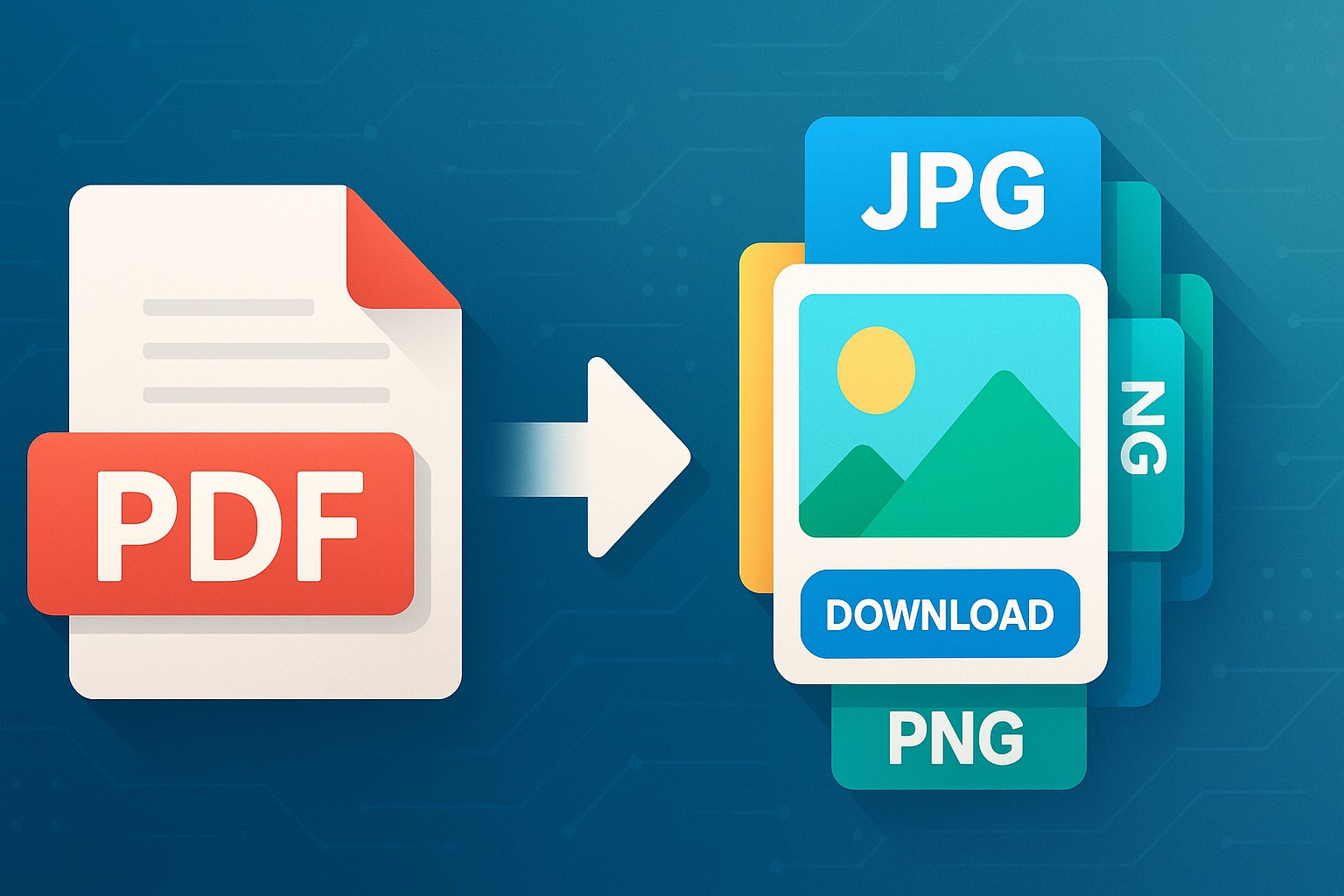
The Ultimate Guide to Convert PDF into image (PNJ, JPG)
In our increasingly visual digital world, PDFs are the workhorses for document sharing, but sometimes, a picture truly is worth a thousand words. Whether you need to extract a specific graphic, share a document snippet on social media, or embed content into a presentation, converting a PDF into an image format like JPG or PNG (which was likely intended by "PNJ") is an indispensable skill. This comprehensive guide will walk you through everything you need to know about transforming your PDFs into versatile image files, highlighting the best methods, tools, and pro tips, with a special nod to how SmartPDFs can make this process effortlessly simple and free.
Why Convert PDF to Image? The Power of Visuals Unleashed
Understanding why you might need to convert a PDF to an image will help you choose the right approach:
- Easy Sharing &a Accessibility: Images are universally supported. Share a report snippet on Instagram, send a graphic via WhatsApp, or embed a chart directly into an email without compatibility worries.
- Web & Presentation Integration: Websites and presentation software often prefer image files. Images load faster and integrate more seamlessly, enhancing user experience and visual flow.
- Quick Previews & Thumbnails: Generate fast visual previews without opening the entire PDF, useful for content management or file organization.
- Editing Flexibility: Once an image, content can be easily opened in any photo editor to crop, resize, add annotations, or combine with other visual elements.
- Prevent Text Copying: While not foolproof, presenting content as an image can deter casual text copying, offering a minor layer of content protection.
- Optimized File Size: For graphic-heavy documents, converting to a compressed image format like JPG can sometimes result in smaller file sizes.
JPG vs. PNG: Choosing the Right Image Format
When converting your PDF, you'll primarily encounter two popular image formats: JPG (or JPEG) and PNG. Each has distinct characteristics.
Joint Photographic Experts Group (JPG/JPEG)
- Best For: Photographs, complex images with smooth color gradients, and web graphics where file size is a primary concern.
- Lossy Compression: Discards some image data permanently for smaller files. This loss is often imperceptible for photos but can create artifacts in sharp lines or text.
- Small File Sizes: Generally produces significantly smaller file sizes compared to PNG.
- No Transparency: JPG does not support transparent backgrounds. Transparent areas will be filled with a solid color (usually white).
Portable Network Graphics (PNG)
- Best For: Logos, screenshots, graphics with sharp lines, text-heavy images, illustrations, and images requiring transparency.
- Lossless Compression: No image data is lost, ensuring perfect reproduction of original quality.
- Larger File Sizes: Typically larger than equivalent JPG files, especially for photographs.
- Transparency Support: Supports alpha channel transparency, crucial for web design and graphic overlays.
When to Choose Which: Use JPG for photos/complex visuals where small file size is key. Opt for PNG for text, diagrams, screenshots, or when transparency is needed, prioritizing quality over the smallest file size.
Top Methods to Convert PDF to Image
Your choice of conversion method depends on convenience, required quality, batch processing needs, and whether you prefer online tools or desktop software.
1. Online PDF Converters (The SmartPDFs Advantage)
Online tools are the most accessible and often the quickest way. They require no software installation, work on any OS, and many are free. SmartPDFs is a premier choice, offering a streamlined, secure, and high-quality conversion.
Pros:
- Accessibility: Use from any device with internet.
- No Installation: Frees up device storage.
- User-Friendly: Intuitive drag-and-drop interfaces.
- Often Free: SmartPDFs offers robust free options.
- Batch Processing: Many allow converting multiple pages or PDFs at once.
Cons:
- Internet Dependent: Requires an active internet connection.
- Privacy Concerns (General): Always choose reputable services like SmartPDFs that prioritize data security and have clear privacy policies.
With SmartPDFs, simply upload your PDF, choose JPG or PNG, adjust settings if needed, and download your images.
2. Desktop Software
For offline work, sensitive documents, or advanced features, desktop software is a powerful alternative.
A. Adobe Acrobat Pro
The industry standard, offering robust conversion.
- Pros: Professional quality, precise control (resolution, color space), batch processing.
- Cons: Expensive subscription, can be resource-intensive, steeper learning curve.
B. Other Dedicated PDF Editors
Tools like Foxit PhantomPDF or Nitro Pro offer similar export functionalities, often at lower price points.
C. Image Editing Software
GIMP (free) and Adobe Photoshop (paid) can open individual PDF pages as images, but are primarily for image manipulation, not bulk PDF conversion.
3. Built-in Operating System Tools (Screenshots)
A quick solution for single pages or small snippets, but with significant limitations.
- Pros: Free, instant, no software needed.
- Cons: Low quality (screen resolution only), captures only visible area, tedious for multiple pages, not suitable for professional use.
4. Programming Libraries (For Developers)
For developers needing automation or custom solutions, libraries like Python's PyMuPDF or Java's Apache PDFBox offer high customization.
Step-by-Step Guide: Converting PDF to Image with SmartPDFs (Online Method)
An online converter like SmartPDFs offers the perfect balance of ease, speed, and quality. Here’s how:
- Visit the SmartPDFs Website: Navigate to SmartPDFs PDF to Image converter.
- Upload Your PDF File: Drag and drop your PDF or click "Choose File."
- Select Your Output Format: Choose JPG or PNG.
- Adjust Conversion Settings (Optional): Select specific pages/range, and set image quality or DPI (72-150 DPI for web, 300+ for print).
- Initiate Conversion: Click "Convert."
- Download Your Images: Download individually or as a ZIP archive. Always review your downloaded images.
Pro Tips for Optimal PDF to Image Conversion
To get the best results from your conversions, keep these expert tips in mind:
- Understand DPI & Resolution: Higher DPI (e.g., 300 for print) means sharper images but larger files. Balance for web (72-150 DPI) vs. print.
- Choose the Right Format: JPG for photos, PNG for graphics/transparency, to optimize quality and file size.
- Batch Convert: Utilize tools like SmartPDFs for multi-page or multiple PDF conversions.
- Check Quality Settings: Experiment with image quality settings (e.g., 80% JPG quality) to find the right balance.
- Prioritize Security & Privacy: Use reputable online tools like SmartPDFs that employ encryption and clear privacy policies.
- Review Output: Always open and review your downloaded images for any anomalies.
Common Challenges and Troubleshooting
Occasionally, you might encounter issues. Here’s how to troubleshoot common problems:
- Fuzzy or Pixelated Images: Caused by low DPI settings or poor original PDF quality. Increase DPI in converter or use a higher quality source PDF.
- Missing Text or Elements: Due to complex fonts or converter rendering issues. Try a different converter (SmartPDFs handles complex PDFs well).
- Converted Images Are Too Large: Result of high DPI/resolution or using PNG for photo-heavy documents. Reduce DPI or convert photos to JPG with lower quality.
- Color Shifts: Differences in color profiles. Use a high-quality converter like SmartPDFs that maintains color fidelity.
- Conversion Errors: Might be a corrupted PDF, file size exceeding limits, or server issues. Re-upload, check file size, or repair PDF if corrupted.
Conclusion: Your Visual Content, Unlocked
Converting PDFs to image formats like JPG and PNG (or "PNJ" as it was likely intended) is a powerful capability that unlocks the visual content within your documents, making them more shareable, embeddable, and editable. Mastering this skill is invaluable for students, professionals, and casual users alike.
With a variety of methods, SmartPDFs offers an unparalleled, free, and reliable solution to transform your PDFs into high-quality images seamlessly. Head over to SmartPDFs today and unlock the full potential of your documents, turning static PDFs into dynamic visuals ready for any platform!



Comments (0)
Leave a Comment