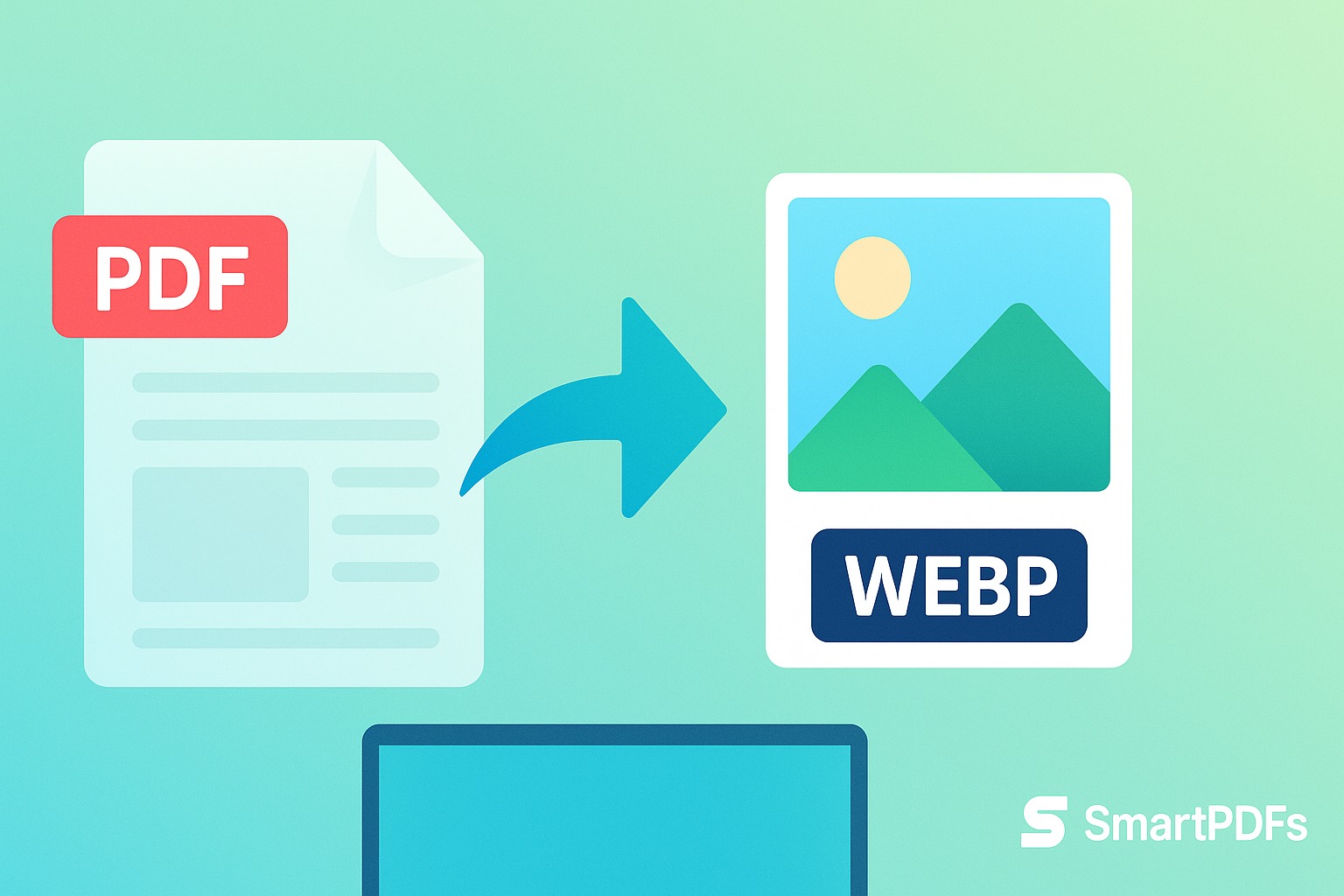
Why Convert PDF to WebP? Benefits & Fastest Method
In today's digital landscape, delivering content quickly and efficiently is paramount. Website speed and user experience are critical for success. Images play a significant role in this equation, and choosing the right image format can make a world of difference. While JPG and PNG have been staples for years, a newer format, WebP, is gaining traction. But what about when your content is stored in PDFs? This article explores the benefits of converting PDF documents containing images to WebP and provides the fastest method using SmartPDFs.
Understanding WebP: A Modern Image Format
WebP, developed by Google, is a modern image format that provides superior lossless and lossy compression for images on the web. It's designed to be a successor to older formats like JPEG, PNG, and GIF. The key advantages of WebP are smaller file sizes and better image quality at the same file size compared to these older formats.
WebP vs. JPG: A Comparison
JPG (or JPEG) has been a widely used format for photographs due to its efficient lossy compression. However, this compression can sometimes result in noticeable artifacts, especially at higher compression levels. WebP, on the other hand, offers comparable or better image quality at significantly smaller file sizes. This means faster loading times for websites and less bandwidth consumption.
WebP vs. PNG: A Comparison
PNG is a lossless format, meaning it preserves all the original image data. This is ideal for images with sharp lines, text, or graphics where preserving detail is crucial. However, PNG files tend to be larger than JPGs or WebPs, especially for photographs. WebP offers lossless compression as well, often achieving smaller file sizes than PNG without sacrificing image quality. In some cases, WebP lossless compression can be 26% smaller than PNG.
Benefits of Converting PDF to WebP
PDF (Portable Document Format) is excellent for preserving the layout and formatting of documents. However, when PDFs contain numerous or high-resolution images, they can become quite large, impacting loading times and storage space. Converting these images to WebP offers several key benefits:
- Reduced File Size: WebP's superior compression algorithms result in smaller file sizes compared to JPG and PNG, leading to smaller overall PDF file sizes after conversion.
- Faster Loading Times: Smaller file sizes translate to faster loading times, improving user experience, especially on mobile devices. This is crucial for websites embedding PDF documents or providing them for download.
- Improved Website Performance: Using WebP images within PDFs contributes to better overall website performance, positively impacting SEO rankings. Google prioritizes websites with fast loading speeds.
- Bandwidth Savings: Smaller files consume less bandwidth, reducing hosting costs and improving the efficiency of data transfer.
- Better Visual Quality: In many instances, WebP can maintain a better visual quality than a JPG equivalent at a smaller file size.
When Should You Convert PDF to WebP?
Consider converting PDF images to WebP if:
- Your PDFs contain a large number of images or high-resolution images.
- You are embedding PDFs on your website and want to improve page loading speed.
- You are concerned about bandwidth usage and storage costs.
- You want to optimize your website for search engines.
- You need to distribute PDFs to users with limited bandwidth.
How to Convert PDF to WebP Using SmartPDFs
SmartPDFs provides a fast and free online tool to convert PDFs to WebP. Here's a step-by-step guide:
- Go to the SmartPDFs PDF to WebP Converter: Navigate to https://smartpdfs.in/pdf-to-webp-converter.
- Upload Your PDF: Click the "Choose File" button and select the PDF file you want to convert from your computer.
- Start the Conversion: Click the "Convert" button to initiate the conversion process.
- Download Your WebP Images: Once the conversion is complete, you will be able to download the converted WebP images as a ZIP file. The ZIP file will contain the extracted images from the PDF, now in the WebP format.
Tips for Optimizing Your WebP Conversions
- Image Resolution: Consider the intended use of the images. If they are for web display, you may not need the highest possible resolution. Reducing the resolution before converting to WebP can further reduce file size.
- Compression Settings: Experiment with different compression settings in your image editing software (if you're converting images individually before inserting them back into a PDF). Lower compression levels result in higher image quality but larger file sizes, and vice-versa. Find a balance that suits your needs.
- Consider Lossless vs. Lossy: For images with sharp lines and text, lossless compression might be preferable, even if it results in a slightly larger file size. For photographs, lossy compression usually provides the best balance between image quality and file size.
Integrating WebP Images Back into PDFs
After converting the images to WebP, you might want to create a new PDF with the optimized images. Here’s how you can generally do it:
- Edit Your PDF: Open the original PDF using a PDF editor (like Adobe Acrobat, LibreOffice Draw, or online PDF editors).
- Replace the Old Images: Delete the existing images and replace them with the newly converted WebP images. Note that some PDF editors might not directly support WebP. If so, you might need to convert WebP to JPG/PNG temporarily for insertion, or use an editor that supports WebP.
- Save the New PDF: Save the modified PDF. Ensure you optimize the PDF during saving to further reduce the file size.
Conclusion
Converting PDF images to WebP offers significant benefits in terms of file size, loading speed, and website performance. By using SmartPDFs' free online PDF to WebP converter, you can quickly and easily optimize your PDF documents for a better user experience. Embracing WebP is a step towards a faster, more efficient web, and SmartPDFs makes it easier than ever to take advantage of this modern image format. Start converting your PDFs today and experience the difference!



Comments (0)
Leave a Comment